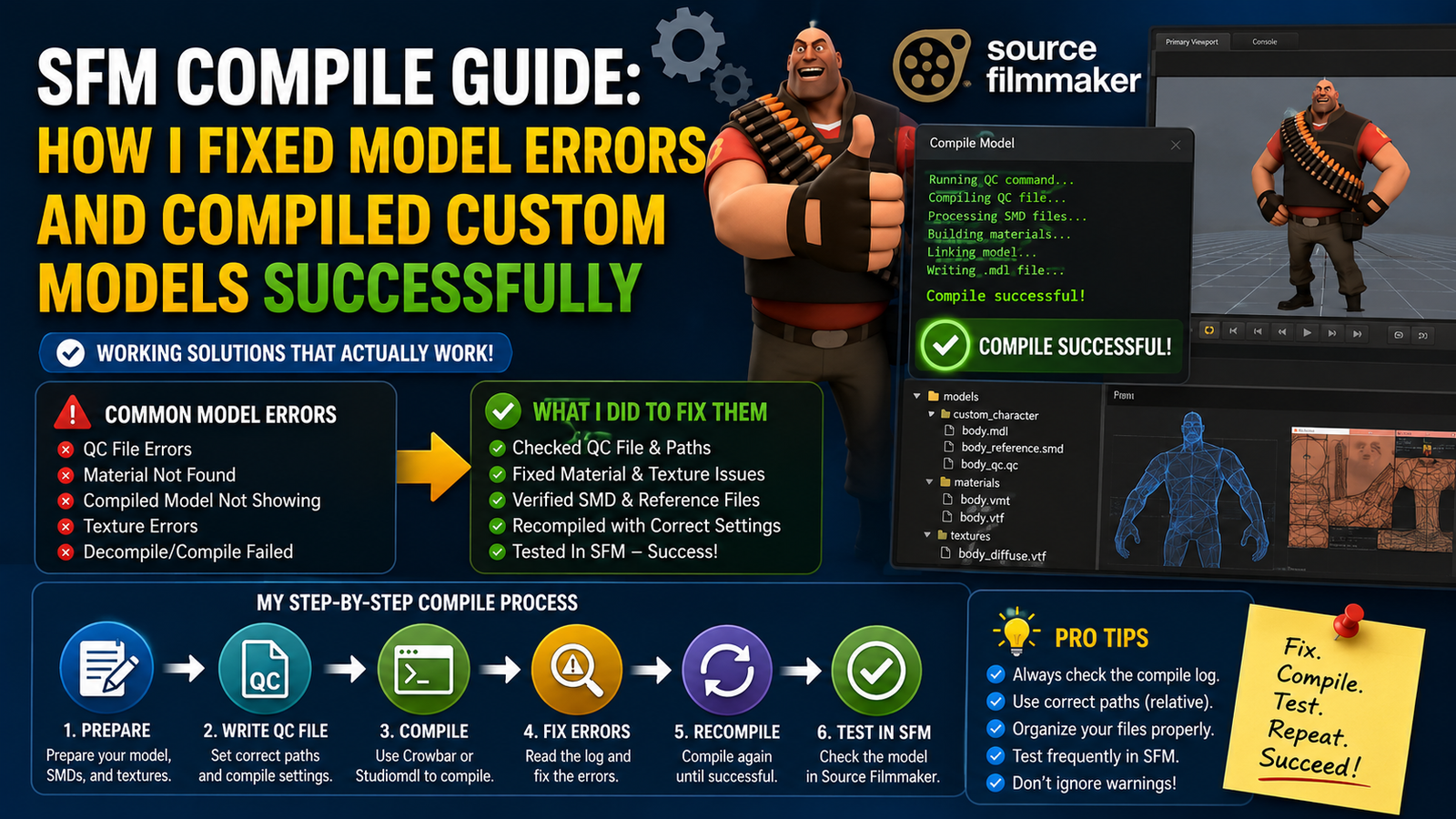
SFM Compile Guide: How I Fixed Model Errors and Compiled Custom Models Successfully
- 1 What SFM Compile Actually Does
- 1.1 Tools I Used Before Compiling Models
- 1.2 How I Organized My Files Before SFM Compile
- 1.3 How I Compiled My First Custom Model in SFM
- 1.4 Common SFM Compile Errors I Faced and How I Fixed Them
- 1.5 How I Fixed Pink Checkerboard Texture Errors
- 2 Crowbar vs Studiomdl
- 3 Final Verdict
It took me nearly two weeks just staring at error logs before my first custom model successfully loaded in Source Filmmaker. The thing is, I didn’t know what a QC file was for, I was confusing studiomdl with Crowbar, and there was a point where I was so despairing that I even considered quitting. This tutorial is exactly the content I wish someone had given me before all my troubles.
If you want to compile your own models for SFM but are always getting stuck, maybe this will help you avoid a few days of frustration.
What SFM Compile Actually Does
Simply put, SFM doesn’t work with original raw 3D model files. Rather, it accesses a particular ‘compiled’ format that the Source engine can actually interpret. Doing a source filmmaker compile means transforming your mesh, textures, and bone data into files like.mdl,.vvd, .vtx, and phy; these are the ones that SFM can handle.
The compilation process refers to a .qc file, which is essentially a script to the compiler, describing what items to include, the location of materials, the animations to link, and the intended behavior of the model.
Tools I Used Before Compiling Models
Before I even touched a compile, I had to get the right tools. Here’s what actually ended up in my workflow:
| Tool | What It Does | When I Used It |
| Crowbar | It is a GUI front-end for compiling studiomdl. | At each compile session |
| Studiomdl | Crowbar invokes this as the compiling engine. | Works invisibly |
| VTFEdit | Converts textures to .vtf format | Before every compile |
| HLMV | Half-Life Model Viewer for previewing | After compiling to check the model |
| Notepad++ | Editing QC files cleanly | Setting up QC every time |
How I Organized My Files Before SFM Compile
In fact, this is the very moment where almost all beginners, myself included at one time, make a dreadful error. The folder setup must be the same as what your QC file states; otherwise, the compiling model in SFM will fail at the texture lookup stage.
Here was my working folder structure:
SteamApps/common/SourceFilmmaker/game/usermod/
Within usermod, there were a models folder and a materials folder. The textures were put in the materials, the mesh files, and the QC were in a subfolder of the models. I got the invalid CD materials error because the path to the location of the VMT files in my QC file was wrong.
How I Compiled My First Custom Model in SFM
After arranging my files, I opened Crowbar and switched the Game Configuration to Source Filmmaker. On the Compile tab, I found my QC file and hit Compile.
The output window filled up in no time. Most of it was fine, although I initially ignored a couple of warnings that really should not have been. The warnings about missing reference meshes were really telling me that the path to the SMD file in my QC was a bit off. It wasn’t wrong enough to cause a crash, but definitely wrong enough to produce a broken model.
After fixing the SMD path, the compile went smoothly without any errors. I fired up HLMV to check it, and there it was, the model. What a relief after so many failures!.
Common SFM Compile Errors I Faced and How I Fixed Them
These are the ones I hit repeatedly. If you’re seeing the same errors, this table might save you some time:
| Error | Likely Cause | Fix That Worked for Me |
| Missing vvd file | The compile didn’t finish, or the wrong output path | Re-run compile and check the output folder path in Crowbar |
| Invalid cdmaterials | Wrong materials path in the QC file | Match QC cdmaterials to the actual subfolder inside /materials/ |
| SFM model not loading | MDL file placed in the wrong folder or SFM cache issue | Move MDL into the correct /models/ subfolder and restart SFM |
| StudioMDL not found | Game path missing in Crowbar | Set the Source Filmmaker install path inside the Crowbar settings |
| Reference mesh missing | SMD filename mismatch in QC | Double-check the SMD filename and case sensitivity |
How I Fixed Pink Checkerboard Texture Errors
A pink checkerboard or danger grid means that your model is messed up, and you must remake the whole thing.
It is the pink checkerboard that most places in SFM trigger the panic response of the newbies. I was among them. It just means that SFM hasn’t found the texture it is looking for in the material.
Misplaced textures are usually not a big deal and can be easily fixed by retracing the whole path from the mdllib to the model’s texture. Think about it: a model references a VMT, which references a VTF. Remove one link, and you have the pink checkerboard apocalypse. So, the whole chain looks like this: the MDL references a VMT, and the VMT references a VTF. Break any link, and you get the pink mess.
What I did: I started by using VTFEdit to open my texture and then exporting it again as a VTF into the correct materials subfolder. Then I opened the VMT in Notepad++, verified that the $basetexture path is an exact match. Sometimes even lowercase matters. After that, I reloaded the model in SFM, and it showed up with the right texture.
Crowbar vs Studiomdl
Studiomdl
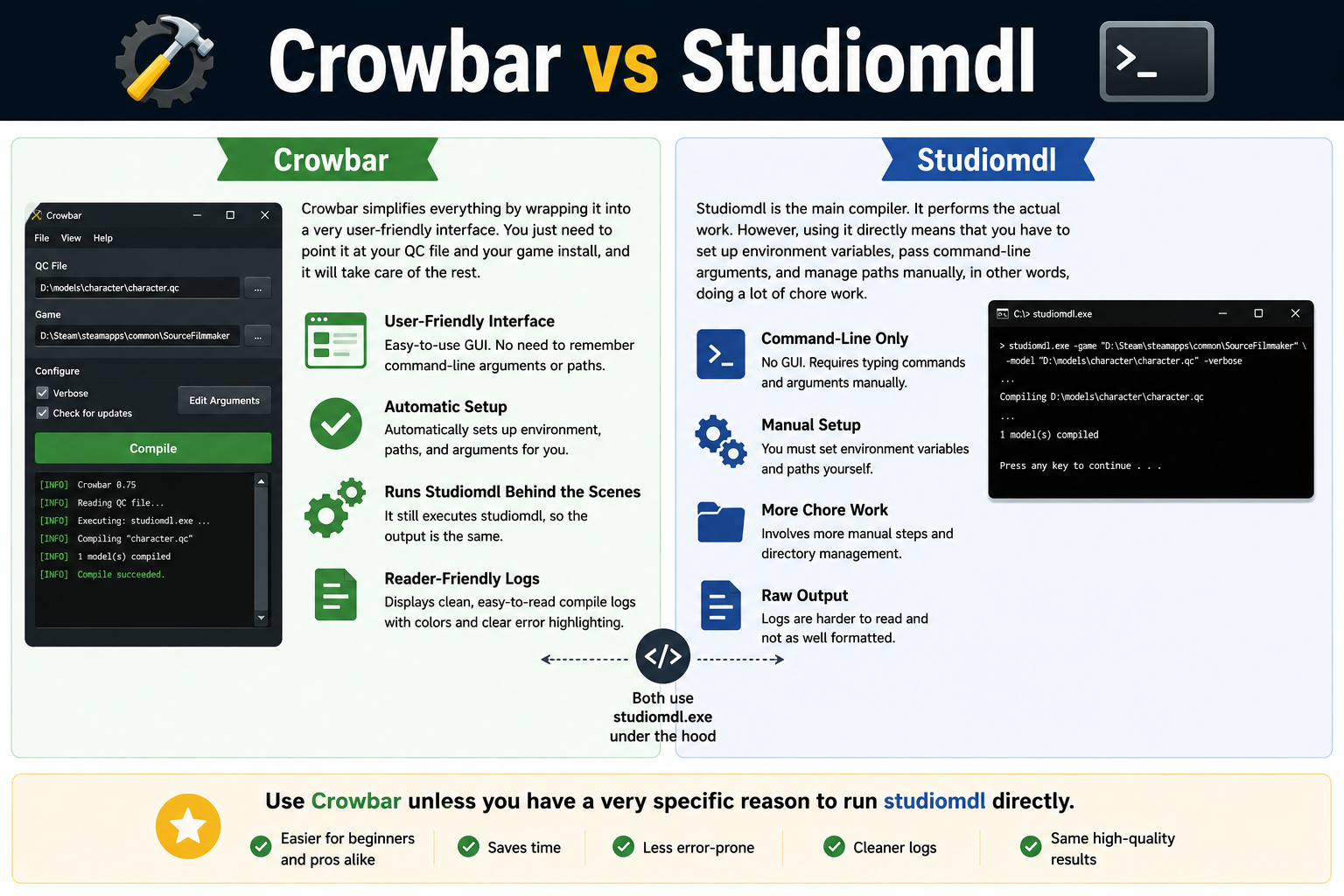
Studiomdl is the main compiler. It performs the actual work. However, using it directly means that you have to set up environment variables, pass command-line arguments, and manage paths manually, in other words, doing a lot of chore work.
Crowbar
Crowbar simplifies everything by wrapping it into a very user-friendly interface. You just need to point it at your QC file and your game install, and it will take care of the rest. It still executes studiomdl behind the scenes, so the output is the same. Moreover, the compile logs it displays are more reader-friendly than StudioML’s raw output.
Use Crowbar unless you have a very specific reason to run studiomdl directly.
Also Read- iOS 17 Review: My Honest Experience After Everyday Use
Tips That Made SFM Compile Easier for Me
- Always check the Crowbar output log line by line after a compile, even if it says successful. Warnings matter.
- Keep your QC file in the same folder as your SMD files to avoid relative path confusion.
- Use HLMV to preview after every compile, not SFM directly. It loads faster and shows errors more clearly.
- If the SFM model is not loading persistently after a correct compile, delete the SFM model cache and restart. The cache holds stale data longer than you’d expect.
Final Verdict
If you are new to SFM compile, don’t worry about it too much. Download Crowbar, configure your paths properly, write a well-structured QC file, and run the compile.
Nearly all my errors were just typos in file paths or textures being exported to the wrong folder. No puzzles, just very simple mistakes that you would easily miss.
Once you get that Crowbar is basically a batch tool for studiomdl, studiomdl is the one reading your QC, and the QC is referring to your files, then it all falls into place. Begin with the basics. One mesh, one material, one compile.
If it’s loaded up in HLMV without error, then you have finished.
FAQs
What is a QC file in SFM compile?
A QC file is basically a script made in plain text that guides the compiler on how to construct your model. It specifies the source of mesh, path for materials, skeleton, and animations. If your QC file is not correctly written, the SFM compile process will not be able to run you get the idea.
Why is my compiled model pink in SFM?
The pink checkerboard pattern is the way SFM indicates that it cannot find the texture. First, make sure your VMT file has the right VTF path inside the materials folder. After that, use VTFEdit to check if the VTF has been exported to the correct location.
Is Crowbar better than running StudioMLD manually?
Crowbar is definitely a more user-friendly tool if you want to easily work with Studiomdl, since it is just a command-line utility that you have a hard time figuring out at first. You don’t really need to learn in detail what StudioMdl is; all should be fine as you get Crowbar, which supplies a graphical interface, also it takes care of the path configuration for you and displays compile logs in a human-readable format.