How to Recover Deleted Files from an External Hard Drive
- 1 Table of Contents
- 2 Can Deleted Files Be Recovered from an External Hard Drive?
- 3 Why Files Get Deleted or Lost on External Drives
- 4 What to Do Before Starting Recovery
- 5 Best Tool to Recover Deleted Files from an External Hard Drive
- 6 How to Recover Deleted Files in 3 Steps
- 6.1 Step 1: Connect the External Hard Drive and Select It in Recoverit
- 6.2 Step 2: Scan the Drive and Preview Deleted Files
- 6.3 Step 3: Recover the Files to a Different Location
- 7 What If the External Hard Drive Is Not Showing Up?
- 8 How to Improve Recovery Success
- 9 Conclusion
Deleted files on an external hard drive are not always gone for good. In many cases, the files remain recoverable until new data overwrites the same storage space. That means your first move matters. If you stop using the drive immediately and use a reliable recovery tool, you often have a strong chance of getting documents, photos, videos, and other lost files back. If you need a broader walkthrough for similar situations, you can also check data recovery software options before starting.
This guide explains how to recover deleted files from an external hard drive, what causes recovery to fail, and which recovery steps give you the best results. If you want the short version: stop writing new data to the drive, scan it with a trusted tool, preview the lost files, and recover them to a different location.
Table of Contents
- Can Deleted Files Be Recovered from an External Hard Drive?
- Why Files Get Deleted or Lost on External Drives
- What to Do Before Starting Recovery
- Best Tool to Recover Deleted Files from an External Hard Drive
- How to Recover Deleted Files in 3 Steps
- What If the External Hard Drive Is Not Showing Up?
- How to Improve Recovery Success
- Conclusion
Can Deleted Files Be Recovered from an External Hard Drive?
Yes, in many cases they can. When a file is deleted from an external hard drive, the system often removes the file record instead of erasing the actual content right away. The file data may still remain on the drive until new data replaces it. That is why recovery is possible after accidental deletion, emptied recycle bins, or even formatting in some cases.
Recovery success depends on several factors, including how long ago the deletion happened, whether you kept using the drive afterward, and whether the drive has logical or physical damage. If the external hard drive is still detected normally by your computer, software-based recovery is usually the best first step.
Why Files Get Deleted or Lost on External Drives
External hard drives are convenient, but they are also exposed to mistakes and interruptions more often than internal storage. Users plug them into different computers, unplug them too fast, move large folders around, and rely on them as archive storage without always keeping backup copies.
| Cause | What Happens | Recovery Outlook |
| Accidental deletion | Files or folders are removed by mistake | Usually good if the drive is not reused heavily |
| Shift + Delete/emptied bin | Files bypass normal restore options | Often recoverable with scanning |
| Formatting | The drive or partition is reformatted | Still possible in many cases if not overwritten |
| File system corruption | Drive asks to be formatted or shows missing folders | Possible if the drive is readable |
| Unsafe ejection | Transfer is interrupted, or the directory structure breaks | Often recoverable |
| Virus or malware | Files are hidden, deleted, or damaged | Depends on the extent of damage |
What to Do Before Starting Recovery
Before you run any recovery tool, stop using the external hard drive. This is the most important rule. Every new write action increases the risk that deleted files will be overwritten. That includes copying files onto the drive, editing documents on the drive, or installing software on the same device.
- Disconnect the drive safely if you are not actively scanning it
- Do not move new files onto the affected external hard drive
- Do not format the drive unless you have already accepted possible data loss
- Prepare another drive or internal folder as the recovery destination
- Use a recovery tool on your computer, not on the external drive itself
These steps sound basic, but they make the difference between partial recovery and no recovery.
Best Tool to Recover Deleted Files from an External Hard Drive
If you want a practical solution without dealing with technical recovery commands, Wondershare Recoverit is a strong option for external hard drive recovery. It is built for common loss scenarios such as deleted files, formatted partitions, emptied recycle bins, RAW drives, and inaccessible storage devices. For readers comparing methods across different situations, this hard drive data recovery resource can be a useful reference point as well.
Recoverit works well here because it gives a clear scan-and-preview workflow. That matters for external hard drives, where people often need to recover mixed file types such as Word documents, PDFs, photos, project folders, ZIP archives, and videos in one session. Instead of blindly restoring everything, you can preview files first and recover only what matters.
Why Recoverit fits this topic:
Readers searching for how to recover deleted files from an external hard drive usually need a direct tool recommendation, not just theory. Recoverit gives them a practical next step and supports the exact device type named in the keyword.
How to Recover Deleted Files in 3 Steps
Here is the straightforward recovery workflow for most external hard drive deletion scenarios.
Step 1: Connect the External Hard Drive and Select It in Recoverit
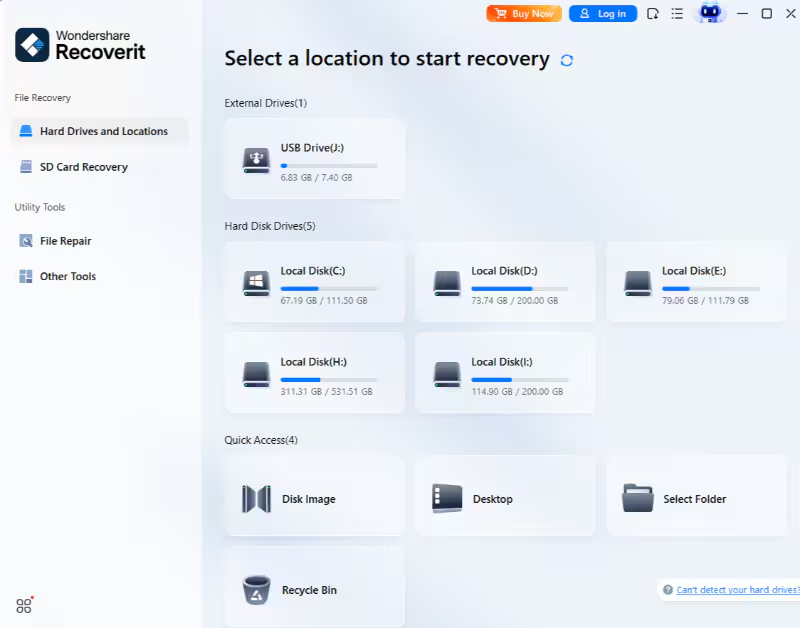
Launch Wondershare Recoverit on your computer, then connect your external hard drive. Once the drive appears in the device list, select it as the scan target.
Purpose: This tells Recoverit exactly where the deleted files were lost.
Result: The software starts analyzing the selected external hard drive for recoverable files.
Step 2: Scan the Drive and Preview Deleted Files
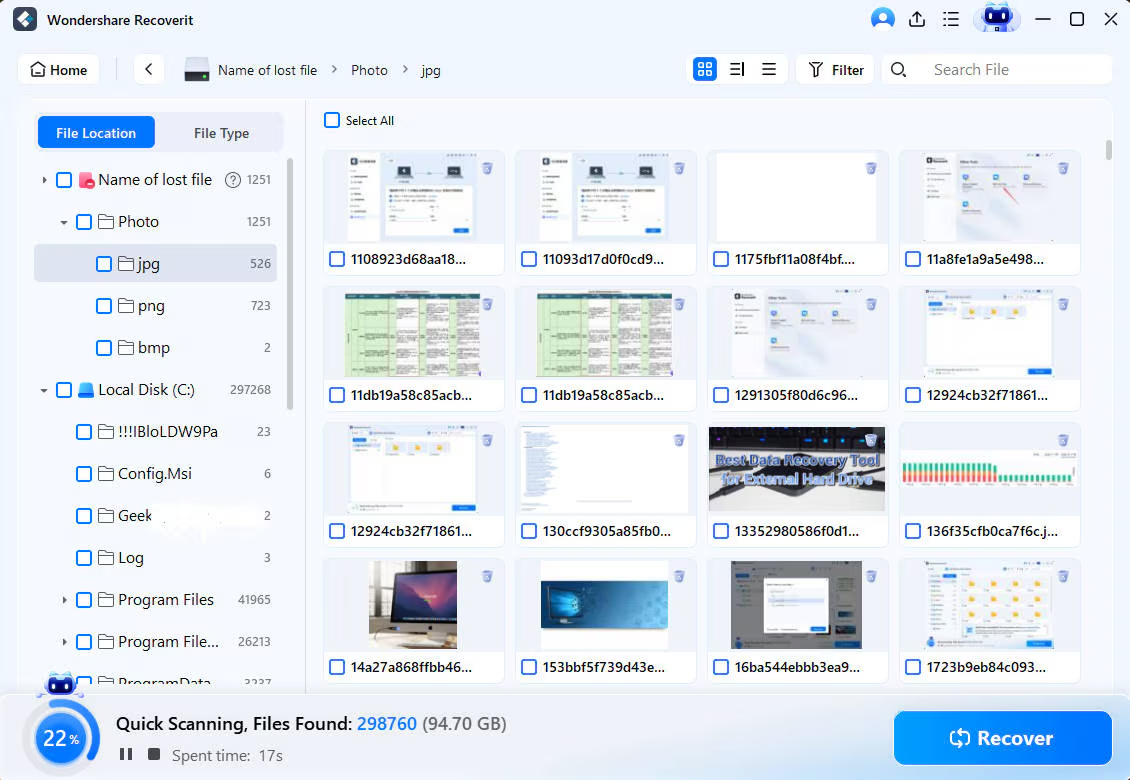
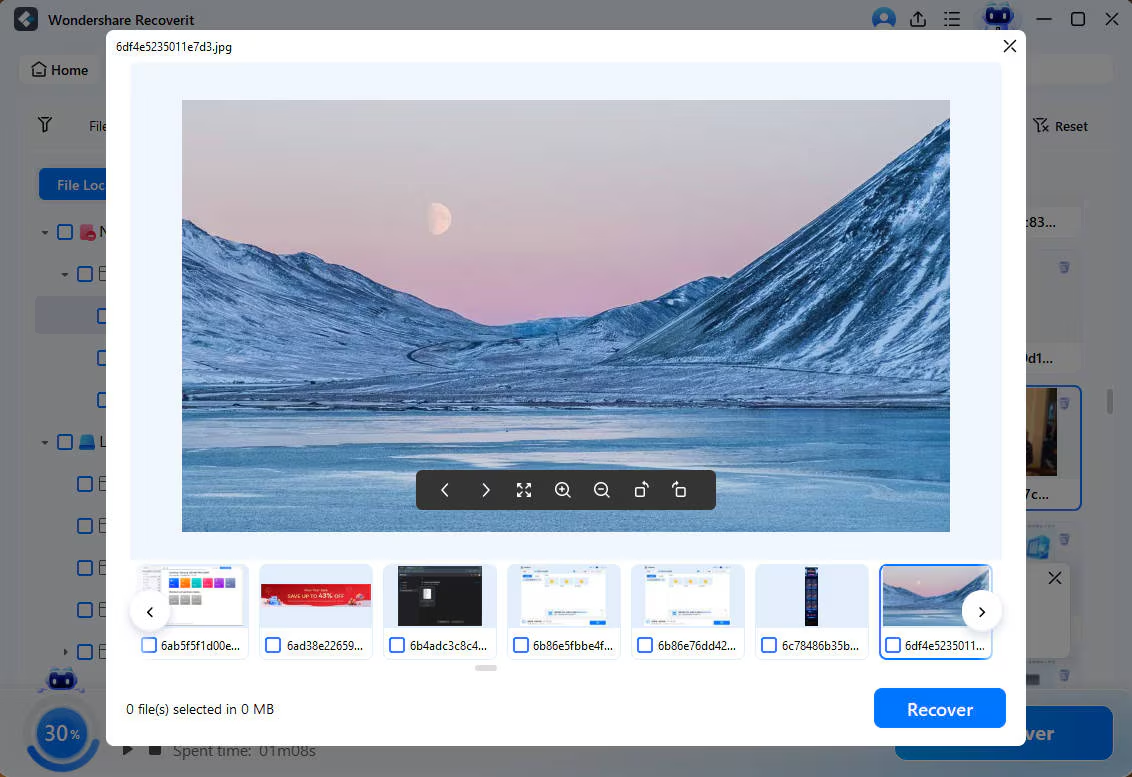
Let Recoverit run a full scan. Use filters such as file type, path, or keyword search to narrow the results. Preview documents, images, videos, and other file types before restoring them.
Purpose: A preview helps confirm that the deleted files are intact and worth recovering.
Result: You can identify the exact lost files you need without restoring unnecessary data.
Step 3: Recover the Files to a Different Location
Select the files you want back and click Recover. Save them to a different internal drive, SSD, or another external storage device instead of the original hard drive.
Purpose: Recovering to a different location avoids overwriting more deleted data still present on the source drive.
Result: Your deleted files are restored to a safe, accessible location where you can check and reuse them.
What If the External Hard Drive Is Not Showing Up?
If your external hard drive is not detected at all, normal deleted-file recovery may not be enough. Start with quick checks: change the USB cable, switch ports, try another computer, and look for the drive in Disk Management or Disk Utility. Sometimes the problem is connection-related, not file-related.
If the drive appears with the wrong file system, shows as RAW, or asks to be formatted, recovery software may still help. If it makes clicking sounds, disconnects repeatedly, overheats, or is completely invisible in system tools, the issue may be physical damage. In that case, repeated DIY attempts can make the problem worse. Software recovery is best for logical loss, not severe hardware failure.
How to Improve Recovery Success
Deleted file recovery is often time-sensitive. A few simple actions can improve the odds significantly.
- Stop writing new data to the external hard drive immediately
- Run recovery as soon as possible after deletion
- Use preview before recovery, so you target the right files
- Recover to a different storage device, never the same one
- After recovery, create a proper backup plan for important folders
A lot of users only think about backup after losing files once. That is normal, but it is expensive. Recovery helps after the mistake. Backup reduces the chance that the same mistake will happen again. If you also need to protect media files, it makes sense to review photo recovery guidance alongside your backup routine.
Conclusion
If you need to recover deleted files from an external hard drive, speed and method both matter. The safest response is to stop using the drive, scan it with a trusted recovery tool, preview the lost files, and restore them to a different location. In many cases, that is enough to bring important files back.
Wondershare Recoverit is a solid recommendation for this job because it matches the actual recovery scenario users face: deleted files on external storage, mixed file types, and a need for a simple guided workflow. If the drive is still readable, it is one of the most direct ways to recover lost external hard drive data without turning the process into a technical mess.