Schoology BCPS Guide for Students, Parents, and Teachers
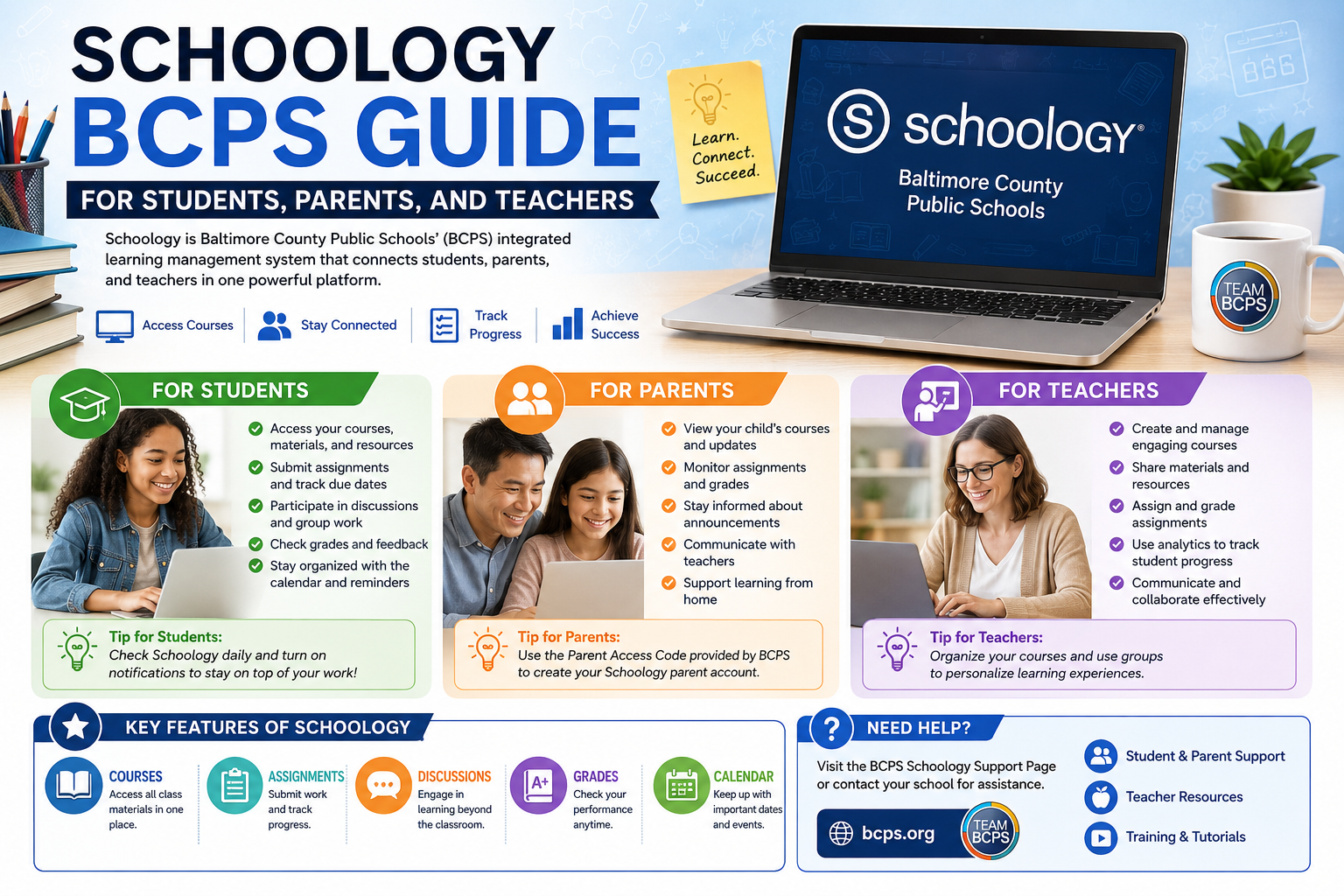
Schoology BCPS is one of the first things you’ll encounter when you enrol, or your child does, in Baltimore County Public Schools. It appears in orientation e-mails, teachers’ syllabi, and likely a couple of bewildered group e-mails. But what is it exactly, and how does it function on a day-to-day basis?
Schoology is the district’s main online classroom platform. Assignments are posted here. Grades live here. Through it, teachers communicate. It is used for progress monitoring by parents. People, particularly students, get used to it pretty quickly, and it is part of their weekly routine.
Quick Overview
| Feature | Who Uses It | What It Does |
| BCPS Schoology Login | Students, Teachers | Access the platform via BCPS credentials |
| Student Dashboard | Students | View courses, tasks, and updates |
| Grades and Attendance | Students, Parents | Track academic progress |
| Parent Account | Parents | Monitor activity without student login |
| Course Materials | Students, Teachers | Upload and access lessons, files, and PDFs |
| Schoology Notifications | All Users | Alerts for assignments, messages, and grades |
| Schoology Mobile App | Students, Parents | Access everything on a phone or tablet |
What Is Schoology BCPS?
BCPS has implemented a district-wide Learning Management System known as Schoology, which serves as an online classroom. It is not a standalone application that BCPS developed.
Schoology is the district’s digital learning platform, so that students, teachers, and parents are all part of one system.
How Students Access Schoology BCPS
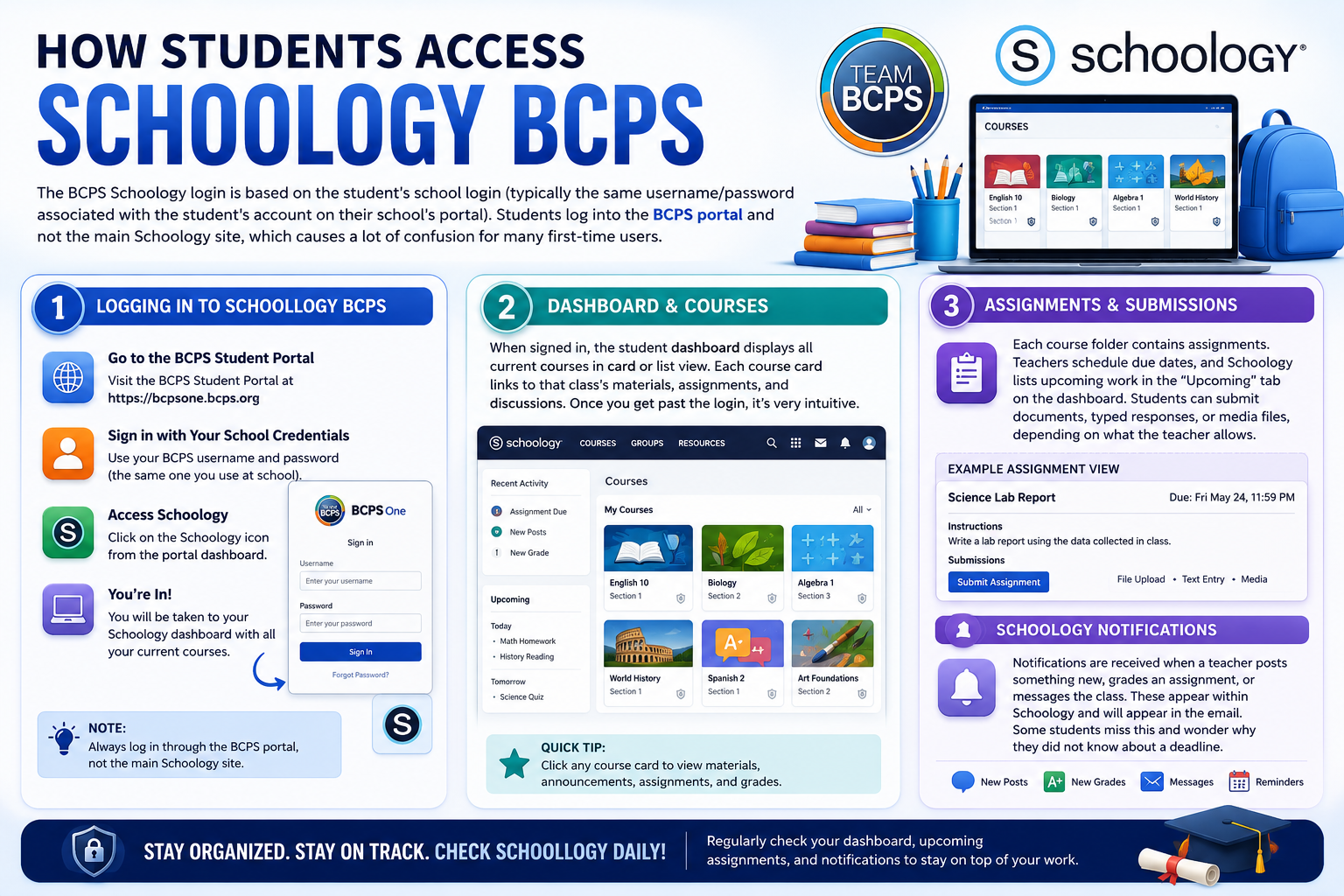
The BCPS Schoology login is based on the student’s school login (typically the same username/password associated with the student’s account on their school’s portal). Students log into the BCPS portal, not the main Schoology site, which causes a lot of confusion for many first-time users.
When signed in, the student dashboard displays all current courses in card or list view. Each course card links to that class’s materials, assignments, and discussions. Once you get past the login, it’s very intuitive.
Assignments and Submissions
Each course folder contains assignments. Teachers schedule due dates, and Schoology lists upcoming work in the “Upcoming” tab on the dashboard. Students can submit documents, typed responses, or media files, depending on what the teacher allows.
Schoology Notifications
Notifications are received when a teacher posts something new, grades an assignment, or messages the class. These appear within Schoology and will appear in the email. Some students miss this and wonder why they did not know about a deadline.
How Parents Use Schoology BCPS
Parents receive a separate login via a parent account in BCPS, NOT a student login. This distinction matters. The parent is connected to the student’s profile but has read-only access to the student’s grades, attendance, submitted work, and course updates.
It requires an access code that is usually provided by the school to set up. If a parent never received one, contacting the front office usually resolves it quickly.
Grade monitoring is easy once you’re in. Grade Summary includes completed work, missing items, and scores. Parents are also able to view teacher announcements, which is helpful when a student forgets to tell parents about a project that is due.
Common Schoology BCPS Problems and Fixes
Login is not working. Almost always a password issue. Students should reset from the BCPS student portal, NOT directly from Schoology.
Course not showing up. Before students can view a course, teachers must publish it. If a class is missing at the start of a semester, waiting a day or two usually fixes it. If not, the teacher is the right person to contact.
Assignment submitted,d but grade not showing. If your teacher does not yet have a grade for your submission, it will appear in Schoology as pending. It does not auto-grade most assignments. Patience is usually the answer here.
The parent account is not syncing to the student. The access code provided by the school should be entered correctly. Capitalisation and spacing are important. It can be reset by the school registrar if it still does not work.
Notifications are not arriving. Ensure that e-mail notifications are on in account settings. Platform defaults are not identical and are not always the user’s expectation.
How Do Teachers Use Schoology in BCPS?
Teachers create Course Pages where all things related to a class exist. They upload lesson materials, create assignments with due dates, conduct discussions, post grades, and communicate with students on the platform.
Schoology also connects with some district grading systems, which means grades entered here can sync elsewhere without double entry.
Rubrics, assignment types, and weighted grading can all be customised, but each teacher will have their own customisations. Some classrooms are really organised on Schoology, and others aren’t so organised.
Also Read- Basic Coding Concepts for Beginners: The Simple Way I Started Learning Code
Pros and Cons
| Pros | Cons |
| Schoology centralizes BCPS digital learning in one place, reducing confusion from scattered emails and paper handouts. | The interface can feel cluttered, especially on older devices. |
| It helps students manage assignments and materials more efficiently, particularly in multiple AP or honors courses. | Some parents find the parent account less intuitive and harder to navigate. |
| Easy access to assignments, announcements, and class resources improves organization. | The overall experience depends heavily on how consistently teachers use the platform. |
| Students can track coursework and deadlines more easily. | Classroom experience can vary significantly from one teacher to another. |
Is Schoology BCPS Easy for Beginners?
Honestly, mostly yes, once the login hurdle is cleared. The BCPS Schoology login process is the part that causes the most early confusion, mainly because it routes through the district portal rather than Schoology directly. Beyond that, the site is easy to use with minimal instructions needed.
Parents take slightly longer to feel comfortable, particularly with the access code set up, and with the lesser view. However, the fundamental functions are not complex. Dedicate 10 minutes at the beginning of the year to look at the dashboard and clear up a lot of confusion later.
Final Verdict
Schoology BCPS is not the most exciting, but it does the job BCPS needs it to do. Students receive a home for assignments and marks. Parents have visibility without chasing down teachers. Teachers receive tools that integrate with district systems. True, the login process creates early headaches, and the experience differs from classroom to classroom. But once everyone gets past the setup, daily use becomes second nature. When you’re new to BCPS, learn the dashboard now. It saves the scrambling later, when deadlines begin to stack up.
FAQs
How do I log into BCPS Schoology as a student?
Students access this via the BCPS student portal with their district username and password. Do not enter BCPS credentials in the direct Schoology website; the portal route is correct.
Can parents see everything students see on Schoology?
Not exactly. Each parent receives a linked parent account that provides them with details on grades, assignments, courses, etc.
What should I do if my Schoology assignment is not submitting?
Try other browsers or devices if the internet connection is working properly. It usually helps to re-download and re-upload the file in the event it persists.