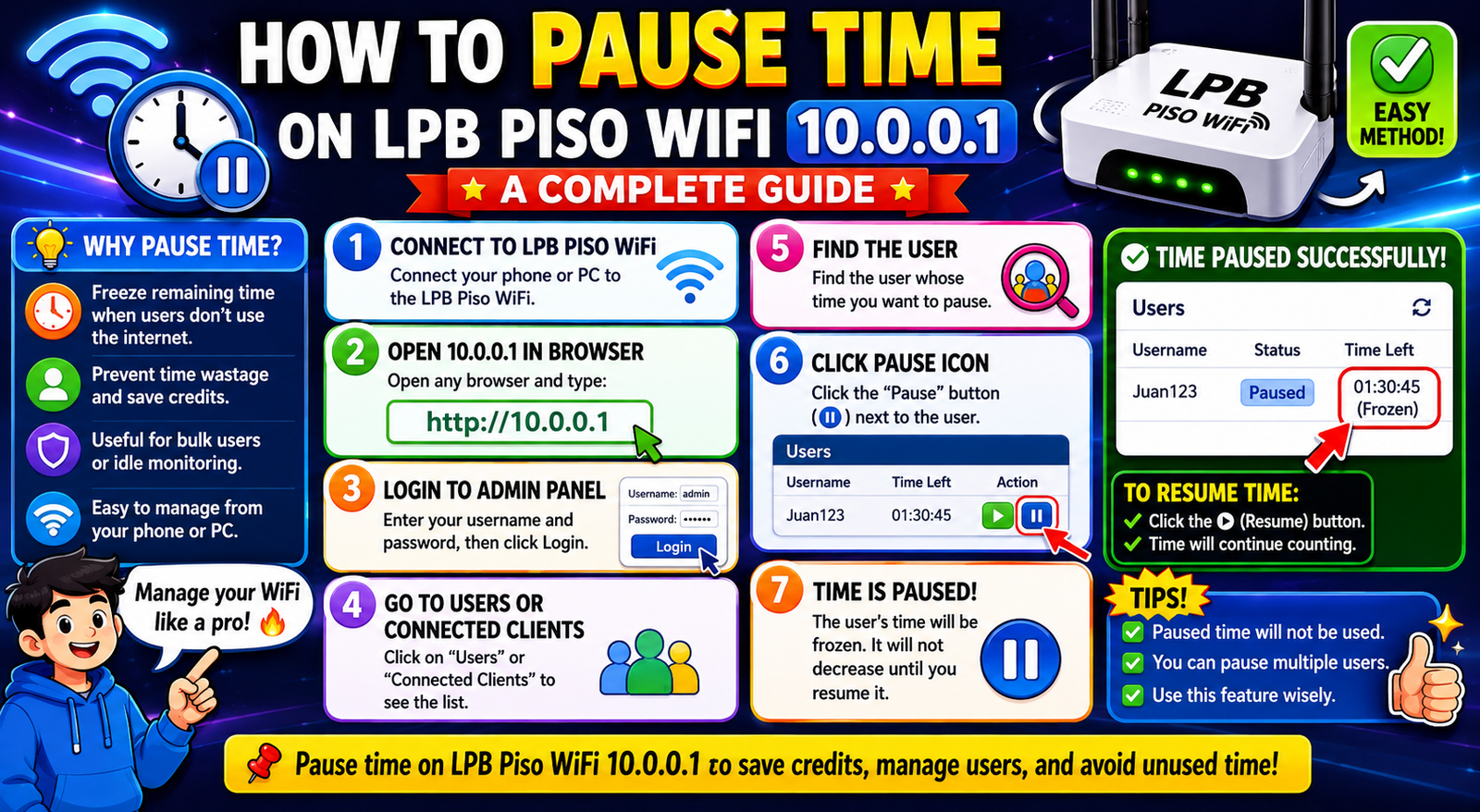
How to Pause Time on LPB Piso WiFi 10.0.0.1: A Complete Guide
- 1 LPB Piso WiFi: Running on 10.0.0.1 Network
- 1.1 How to Pause Time on LPB Piso WiFi 10.0.0.1 (For Users)
- 1.2 How to Insert Coins and Get Connected
- 1.3 For Vendo Owners: How to Access the LPB Piso WiFi Admin Panel
- 1.4 How to Enable Pause Time for Your Customers
- 1.5 Troubleshooting: Can’t Access 10.0.0.1?
- 2 Final Verdict
Imagine this: you’re attached to an LPB Piso WiFi hotspot, but you have to leave your spot for a few minutes. What’s worse, your remaining internet time will continue ticking down even when you’re not using it. You can still catch up on this, though. The pause time feature on LPB Piso WiFi 10.0.0.1 is made precisely for this, and using it won’t take you even a minute!
We cover in detail how to pause your session as a user, enter the admin panel as a vendor owner, solve login issues, and customize your account settings.
LPB Piso WiFi: Running on 10.0.0.1 Network
LPB is an abbreviation for Lintech Piso WiFi Box, one of the top coin-operated Internet vending systems in the Philippines. They are usually deployed in sari-sari stores, terminals, living huts, and small communities where an affordable connection is a concern.
10.0.0.1 is simply the most important address that gives control of everything. Once an LPB user, a simple entry of this address into any web browser gives you access to the website where you can insert coins, redeem vouchers, pause your session, or control the whole system as a proprietor. None of it is possible without this address.
How to Pause Time on LPB Piso WiFi 10.0.0.1 (For Users)
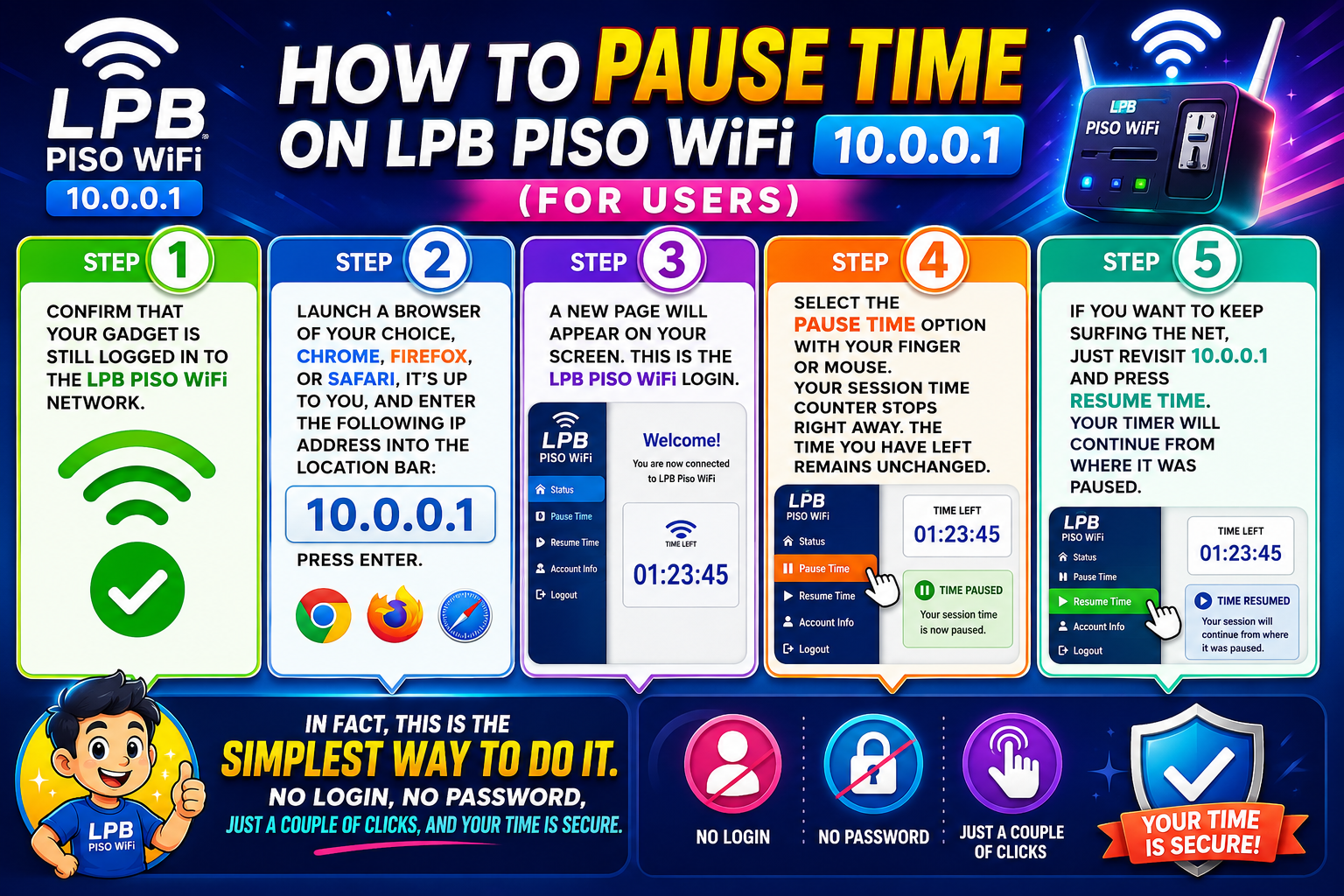
Most people come here for this step. So, I’ll dive right into it.
Step 1: Confirm that your gadget is still logged in to the LPB Piso WiFi network.
Step 2: Launch a browser of your choice, Chrome, Firefox, or Safari, it’s up to you, and enter the following IP address into the location bar: 10.0.0.1. Press enter.
Step 3: A new page will appear on your screen. This is the LPB Piso WiFi login.
Step 4: Select the Pause Time option with your finger or mouse. Your session time counter stops right away. The time you have left remains unchanged.
Step 5: If you want to keep surfing the net, just revisit 10.0.0.1 and press Resume Time. Your timer will continue from where it was paused.
In fact, this is the simplest way to do it. No login, no password, just a couple of clicks, and your time is secure.
How to Insert Coins and Get Connected
If you have never used LPB Piso WiFi before, here’s the step-by-step guide on how the entire system works:
Step 1: From your device’s WiFi settings, connect your phone or laptop to the LPB Piso WiFi network.
Step 2: Launch any web browser and type 10.0.0.1 in the address bar.
Step 3: Select “Insert Money” on the portal homepage.
Step 4: Put the coins into the machine’s arm.
Step 5: After the timer reflects the duration for which you have paid, press the “Done Paying” button.
The connection is established, and you can now access the internet. Easy, quick, and very cheap.
For Vendo Owners: How to Access the LPB Piso WiFi Admin Panel
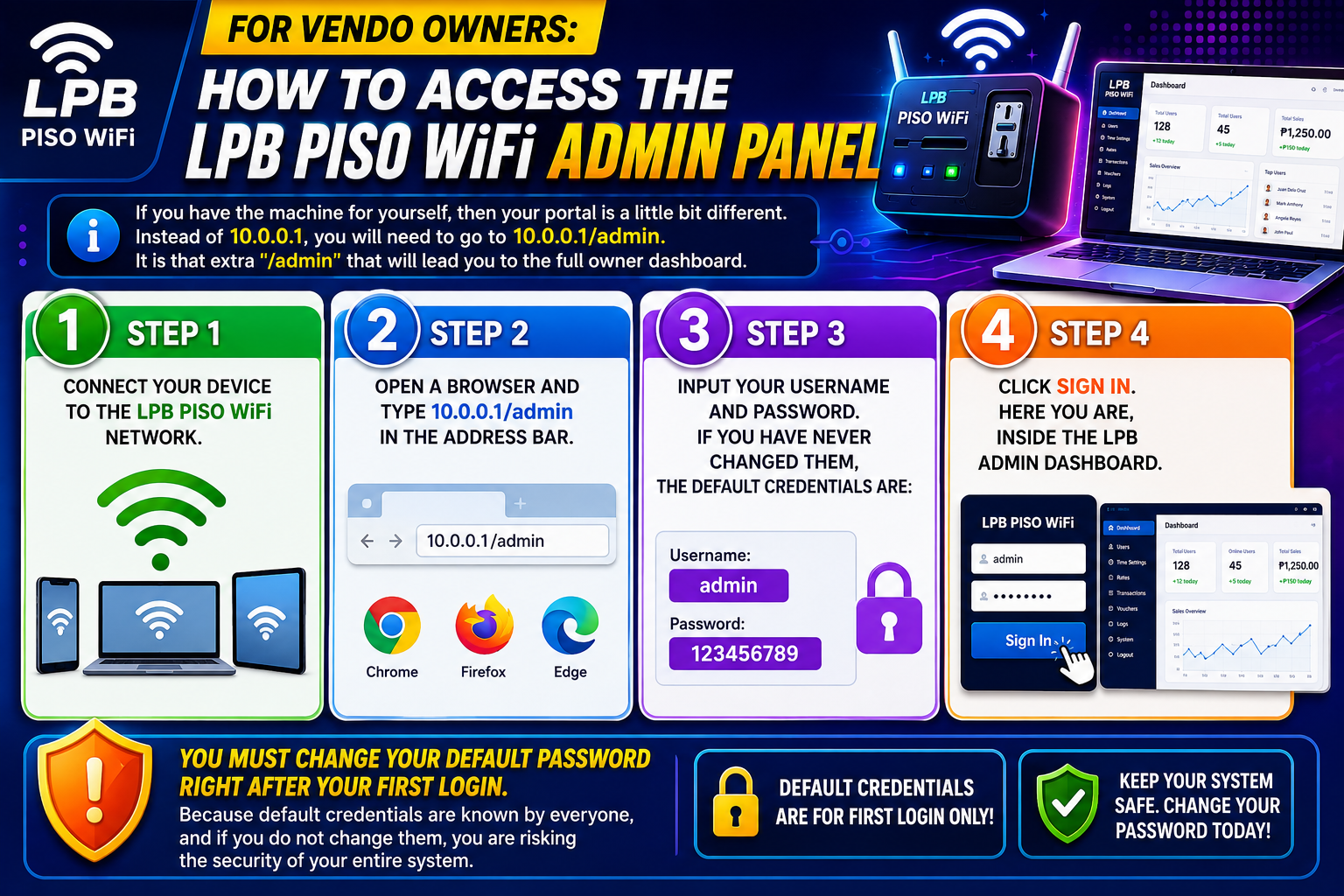
If you have the machine for yourself, then your portal is a little bit different. Instead of 10.0.0.1, you will need to go to 10.0.0.1/admin. It is that extra “/admin” that will lead you to the full owner dashboard.
Step 1: Connect your device to the LPB Piso WiFi network.
Step 2: Open a browser and type 10.0.0.1/admin in the address bar.
Step 3: Input your username and password. If you have never changed them, the default credentials are:
- Username: admin
- Password: 123456789
Step 4: Click Sign In. Here you are, inside the LPB admin dashboard.
You must change your default password right after your first login. Because default credentials are known by everyone, and if you do not change them, you are risking the security of your entire system.
How to Enable Pause Time for Your Customers
As the business owner, if your patrons indicate that they cannot find the Pause Time button, it’s highly probable that you have disabled it.
Here’s the way to re-enable it:
Step 1: Enter your admin page at 10.0.0.1.
Step 2: Click on the menu button located at the top left of the dashboard.
Step 3: Select Portal Settings.
Step 4: Scroll down to Insert Coin Mode and locate the Pause/Resume Time switch.
Step 5: Switch it on and click Save Changes.
On their subsequent visit to the portal, your customers will be able to see the Pause and Resume buttons.
Quite a simple setting, yet it significantly affects how your customers feel about you. They will thank you for not taking away their paid time just because they went to the bathroom.
Also Read- JuicyChat AI Review: Genuinely Good in Some Ways, Frustrating in Others
Troubleshooting: Can’t Access 10.0.0.1?
Issues like this happen pretty often, and in fact, the fix is usually quite straightforward.
Wrong IP address entered. Check the address bar in your browser. If you see a wrong address, like 10.0.0.0.1, you should delete it and enter the right one: 10.0.0.1.
Your phone’s mobile data is still active. If your device gets connected to mobile data, it is not going to use the Wi-Fi LAN but Mobile Data instead. Therefore, turn off mobile data and then try to use WiFi.
VPN on. When you use a VPN, the network routing is altered, and local IP addresses like 10.0.0.1 will be blocked. So first, disconnect the VPN.
Open your WiFi settings and make sure that your device is connected to the LPB Piso WiFi network and not to some other nearby network.
Final Verdict
The LPB Piso WiFi system at the 10.0.0.1 address is pretty simple once you have a bit of familiarity with it. It offers a very neat and user-friendly interface for session management. Thus, users can operate the portal to introduce coins, pause their time, and redeem their vouchers even if they have no technical background.
Owners are provided with an effective admin panel at 10.0.0.1/admin, which allows them to take complete control of their Vendoo business.
Simply, the pause time function of LPB makes it one of the most user-friendly Piso WiFi systems in the Philippines today. No more minutes being wasted. No more frustration. Just tap pause, take care of what you need to do, and come back when you are prepared.
FAQs
Q: What is LPB Piso WiFi 10.0.0.1?
It is the local portal address for LPB Piso WiFi vending machines in the Philippines, where users insert coins, pause time, and redeem vouchers to access the internet.
Q: How do I pause time on LPB Piso WiFi?
Open your browser, go to 10.0.0.1, and tap the Pause Time button. Tap Resume Time when you are ready to continue.
Q: What is the default admin password for LPB Piso WiFi?
The default username is admin, and the default password is 123456789. Change these immediately after your first login.
Q: What is the admin portal address for LPB Piso WiFi owners?
Vendo owners access the full dashboard at 10.0.0.1/admin, not the standard 10.0.0.1 customer portal.
Q: What does LPB stand for in LPB Piso WiFi?
LPB stands for Lintech Piso WiFi Box, a coin-operated internet vending system widely used across the Philippines.