How to Open OST Files in Outlook Without Errors
OST – Outlook Data file – is created automatically when you add an email account with Exchange or IMAP. This file is a cached copy of your mailbox on your device that contains your mailbox data, such as attachments, emails, notes, and tasks. This file is encrypted with the unique MAPIEntryID GUID key and is linked with the original Outlook profile. That’s why you cannot open and access the OST file directly in another Outlook account or profile. In this article, we will outline the need to open the OST file and the ways to access it without errors.
Reasons You May Need to Open the OST file
There are various scenarios where you need to open or access an OST file from another Outlook account or profile. Some of them are given below:
- To recover emails when your OST file is corrupted.
- To access your mailbox when your Outlook profile is no longer connected to the Exchange server.
- To migrate Outlook data to a new system or account.
- To view old emails stored in an OST file from a previous job or account.
Methods to Convert and Import the OST file into PST
As previously stated, you can’t access or open the OST file directly because it is tightly linked with a specific profile. So, if you want to open the OST file, you need to convert it into PST first. Some methods are listed below to convert the OST file into PST without losing your data:
Convert the OST file into PST by using Stellar Converter for OST
If you have OST files that belong to deleted or disabled accounts or old email accounts that are no longer accessible, then you can use a reliable OST to PST converter tool like Stellar Converter for OST. This tool can convert the inaccessible or abandoned OST file into PST format while maintaining the original folder structure and hierarchy. You can export your mailbox in several other formats, like MSG, EML, RTF, HTML, PDF, etc. Below, we have mentioned the steps to convert the OST file into PST by using the Stellar Converter for OST:
- Visit the official website of the Stellar Converter for OST.
- Download and install the application.
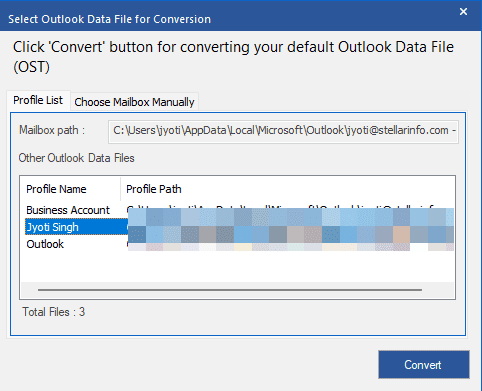
- Click on List Profiles. This will automatically list all your Outlook data files associated with your original Outlook profile.
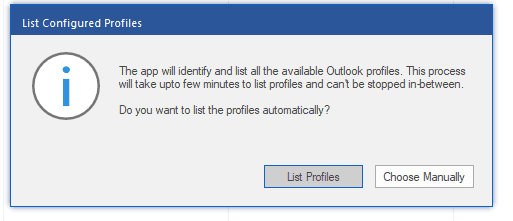
- Select the option Choose Manually if your OST file is inaccessible or located at a different location.
- After choosing the OST file, click on Convert.
- After the conversion process is complete, your mailbox items are listed in a three-pane preview window.
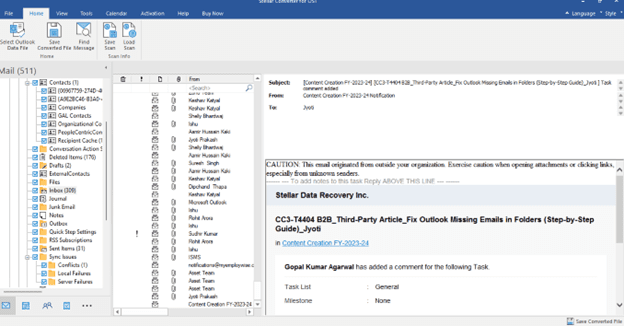
- Choose one or more items that you wish to convert into a PST file.
- Select one or more items that you want to convert into a PST file.
- Choose PST as the output format after clicking Save Converted File.
The converted file will be saved at the location selected by you. Now, you can import it into any Outlook profile and access your mailbox data.
Convert OST to PST through Outlook’s Import/Export Wizard
Outlook’s Import/Export wizard – Microsoft’s built-in feature- is one of the easiest and best ways to convert your OST file into PST. But this is only helpful when you have access to your original Outlook profile. You can follow the steps mentioned below:
- Launch Outlook on your device.
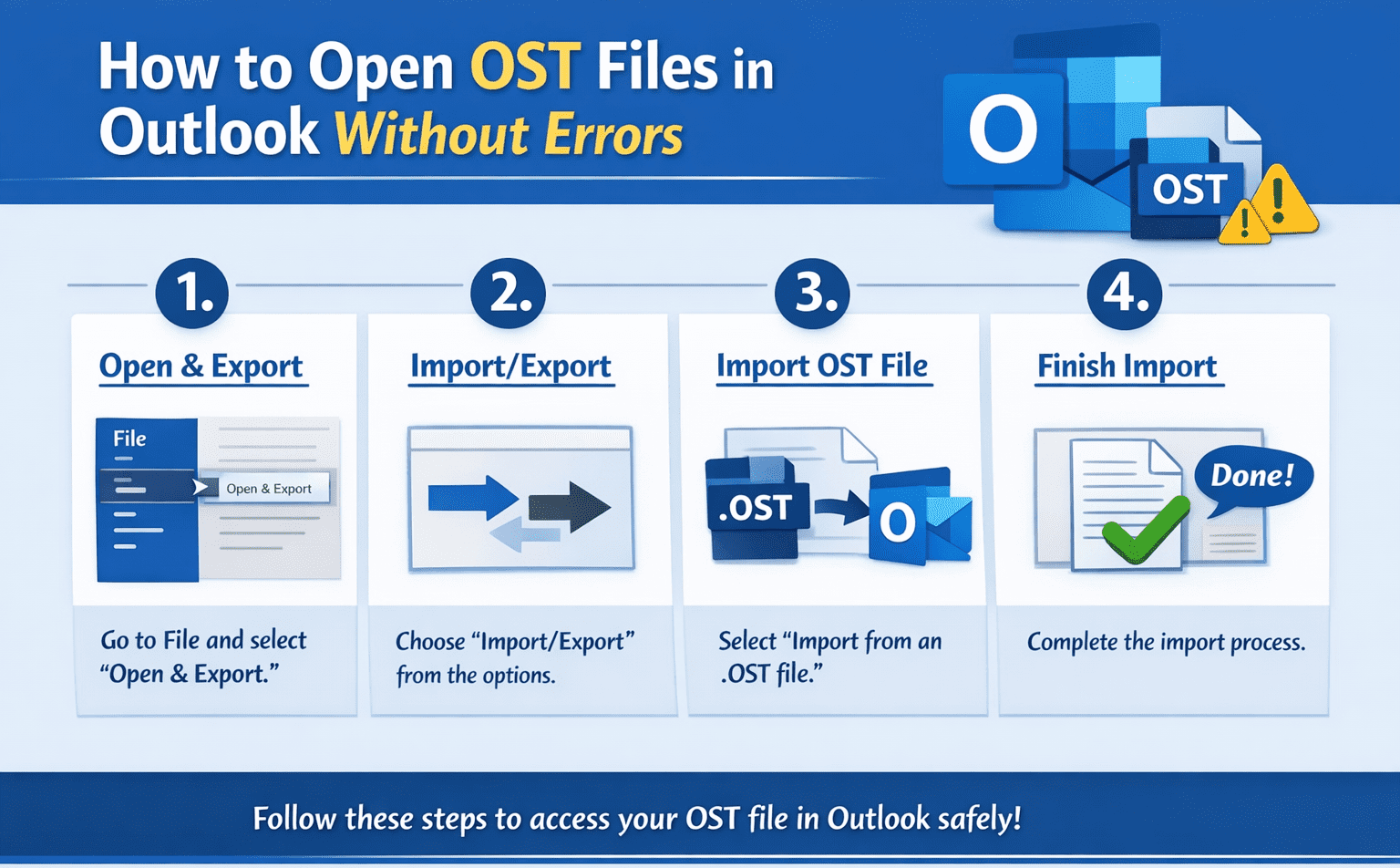
- Click File and proceed to Open & Export.
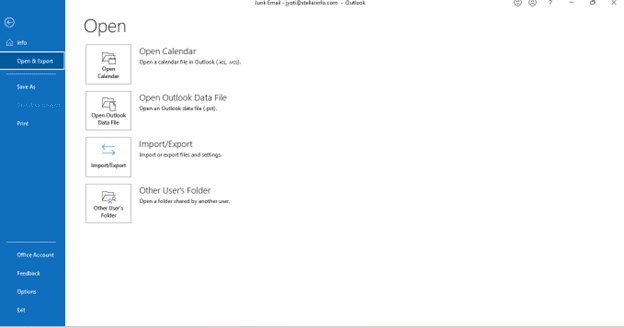
- Select the Import/Export
- Now, select the option – Export to a File in the Import/Export wizard window.
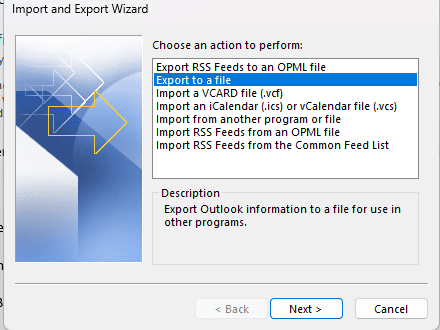
- Click on Next.
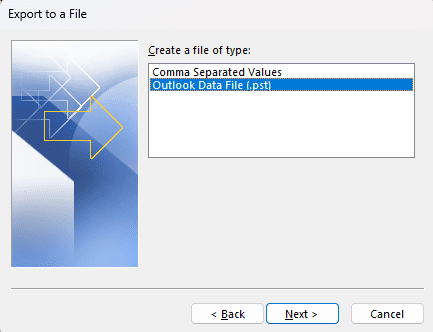
- Select the Outlook Data File and click Next.
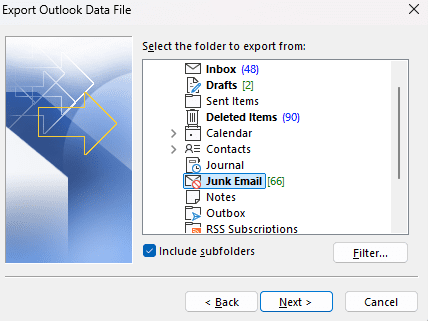
- Select your main mailbox folder or folders you want to convert to PST,
- Also, check the Include subfolders box.
- Click Next.
- Give a name to your PST and choose location a location to save it.
- Click Finish.
Open the Converted PST File in Microsoft Outlook
Once you have converted the OST file into PST, you can easily open and access it by importing the file into Microsoft Outlook. Follow the steps given below:
- Open Microsoft Outlook.
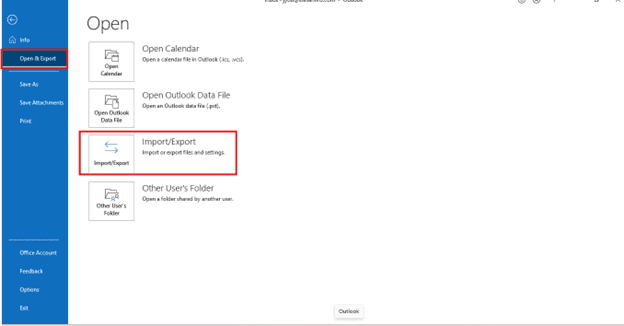
- Go to File and Click on Open & Export
- Click on Import / Export.
- Choose the option Import from another program or file.
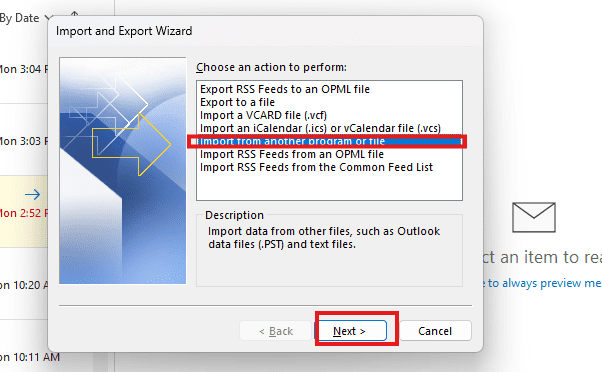
- Click on
- Click on Outlook Data File (.pst) and click on
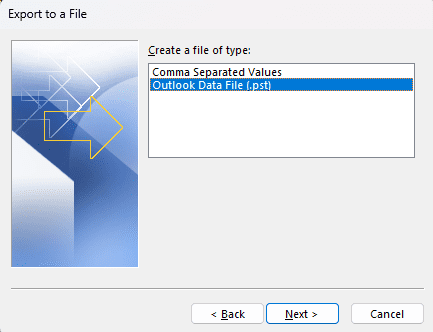
- Click the Browse button and choose the PST file (converted OST) you want to import.
- Then, click Next.
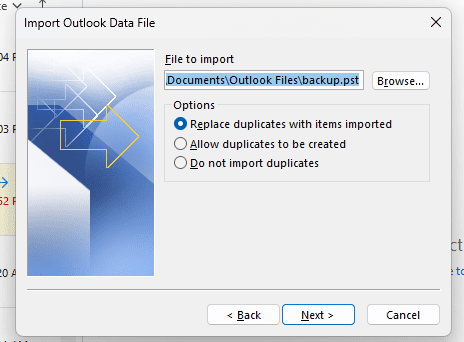
If you follow the step-by-step process, you can access your OST file in Outlook without any errors.
Conclusion
As mentioned in this article, OST files can’t be opened directly in another Outlook profile or account. If you want to open the OST file, then you need to convert it into PST format first. Converting an OST file using the Import and Export wizard when your Outlook profile is accessible or active. If your OST file is inaccessible or your Outlook profile is not active, then the only and best option is to use a professional OST to PST converter tool, like Stellar Converter for OST. You can extract all your mailbox items with the help of this tool while maintaining folder structure and hierarchy.