How to Change Disney Plus Password
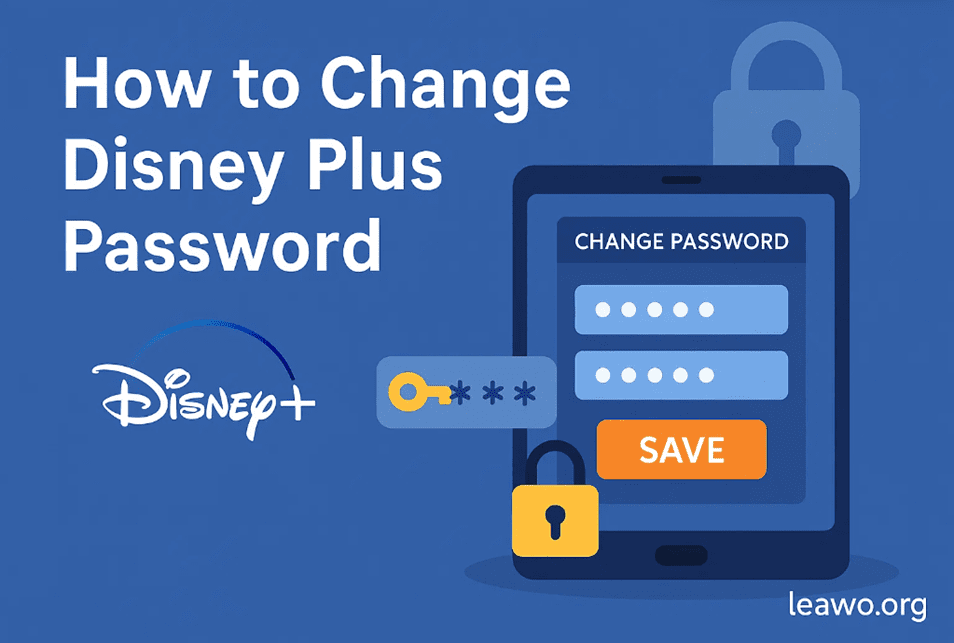
I have accounts with HBO Max, Prime Video, and Disney Plus, and I always try to keep these passwords different, so if I get hacked, they can’t get into multiple accounts because I used the same password. So, recently, I needed to change my Disney Plus password again, so I thought I’d share the steps. This post shows you exactly how to change your Disney Plus password on different devices, and also what to do if you forget your password.
How to Change Disney Plus Password via Web Browser
Any browser will be fine, but I suggest using common ones like Chrome, Edge, etc., to avoid any compatibility issues. Here are the steps:
- Step 1: Visit https://www.disneyplus.com.
- Step 2: Sign in to your account using your email address and current password.
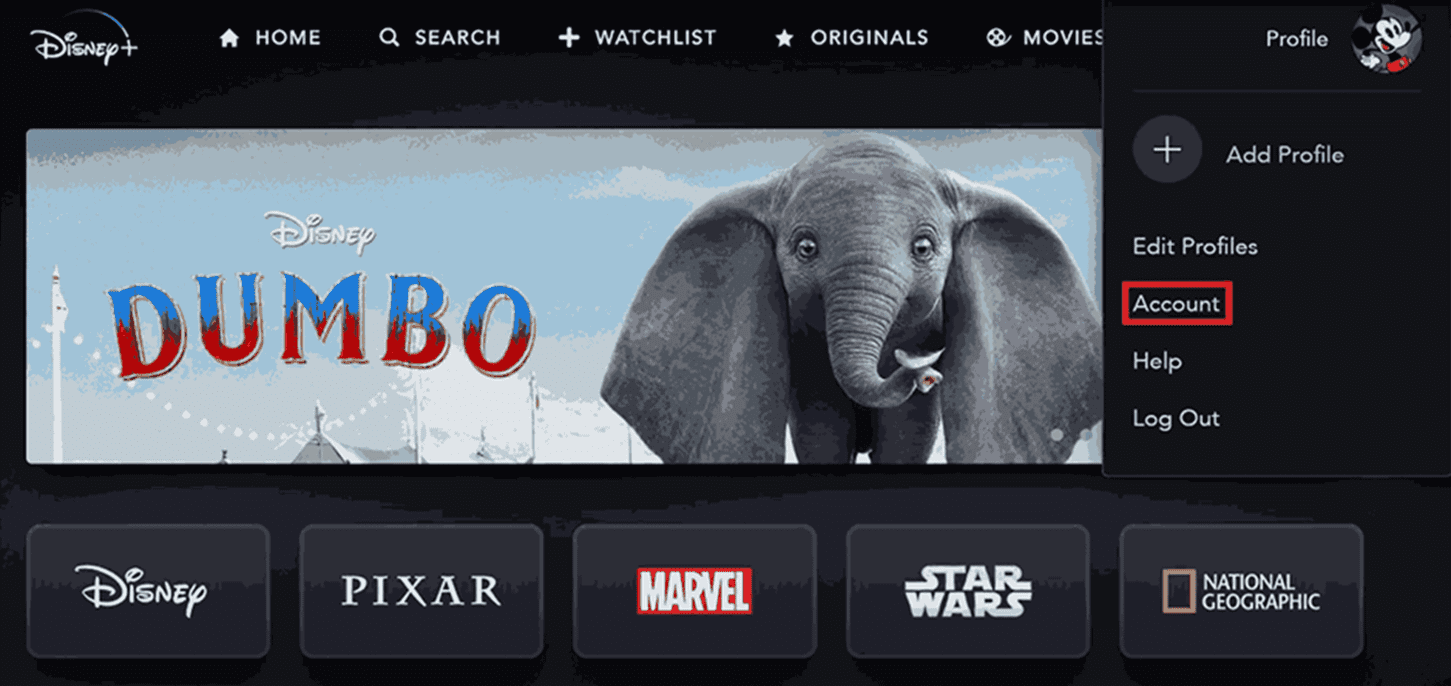
- Step 3: Click on your profile picture in the top right corner, and then click Account.
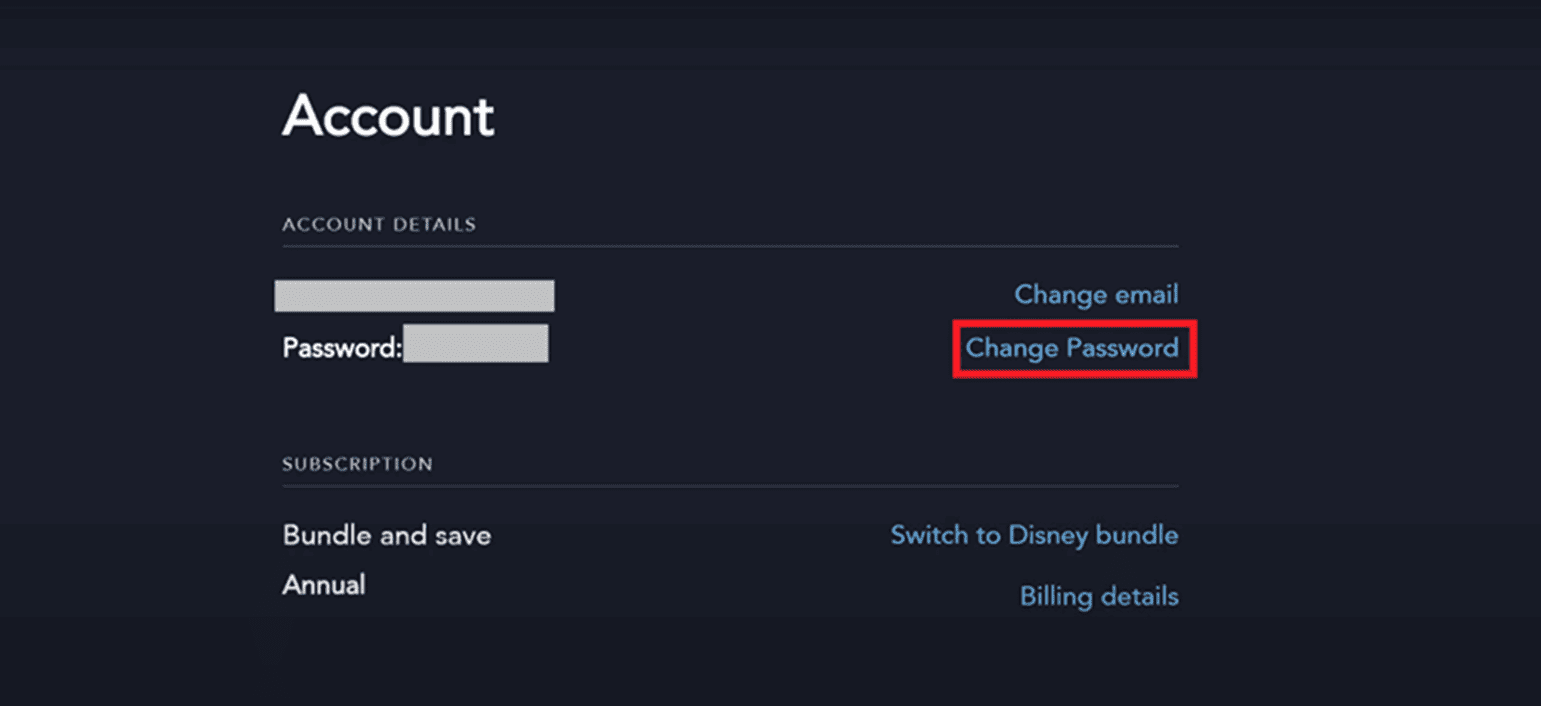
- Step 4: Click Change Password next to Password.
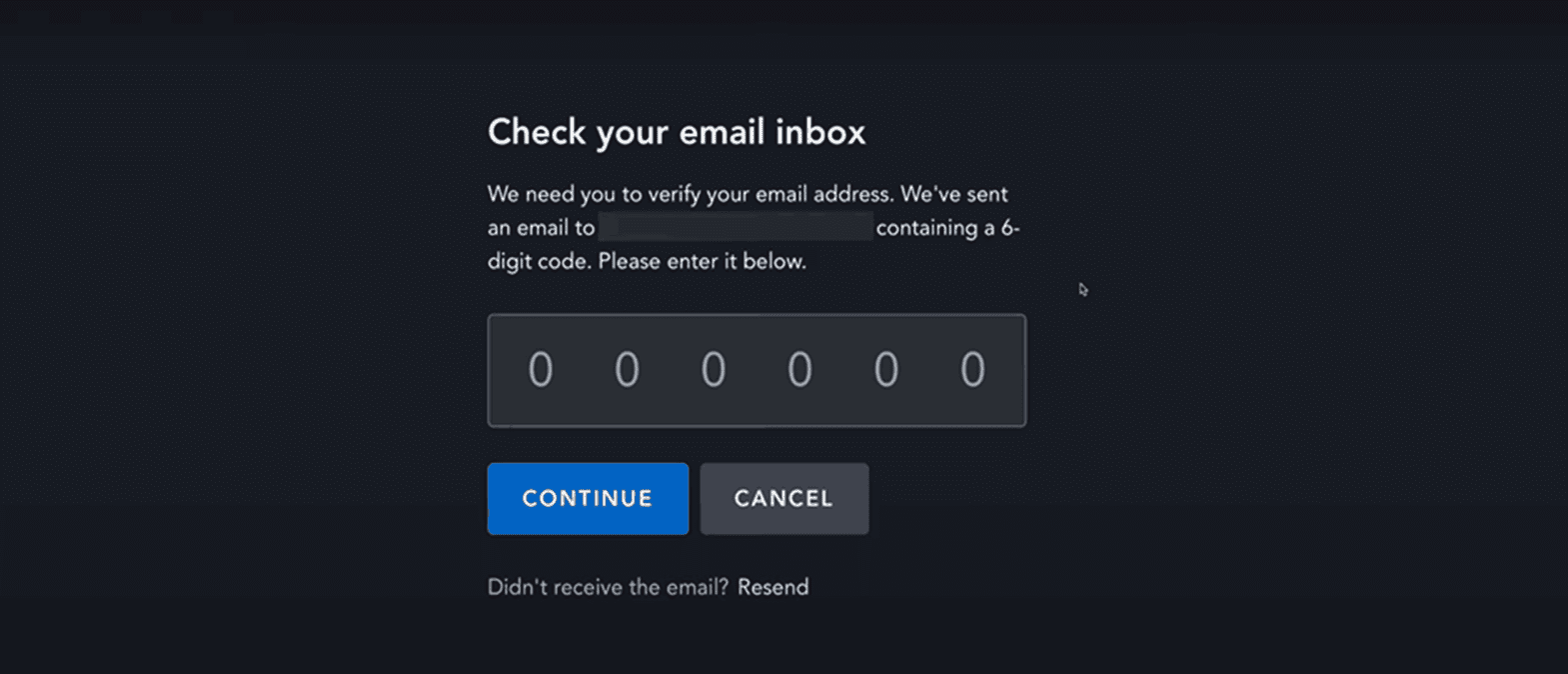
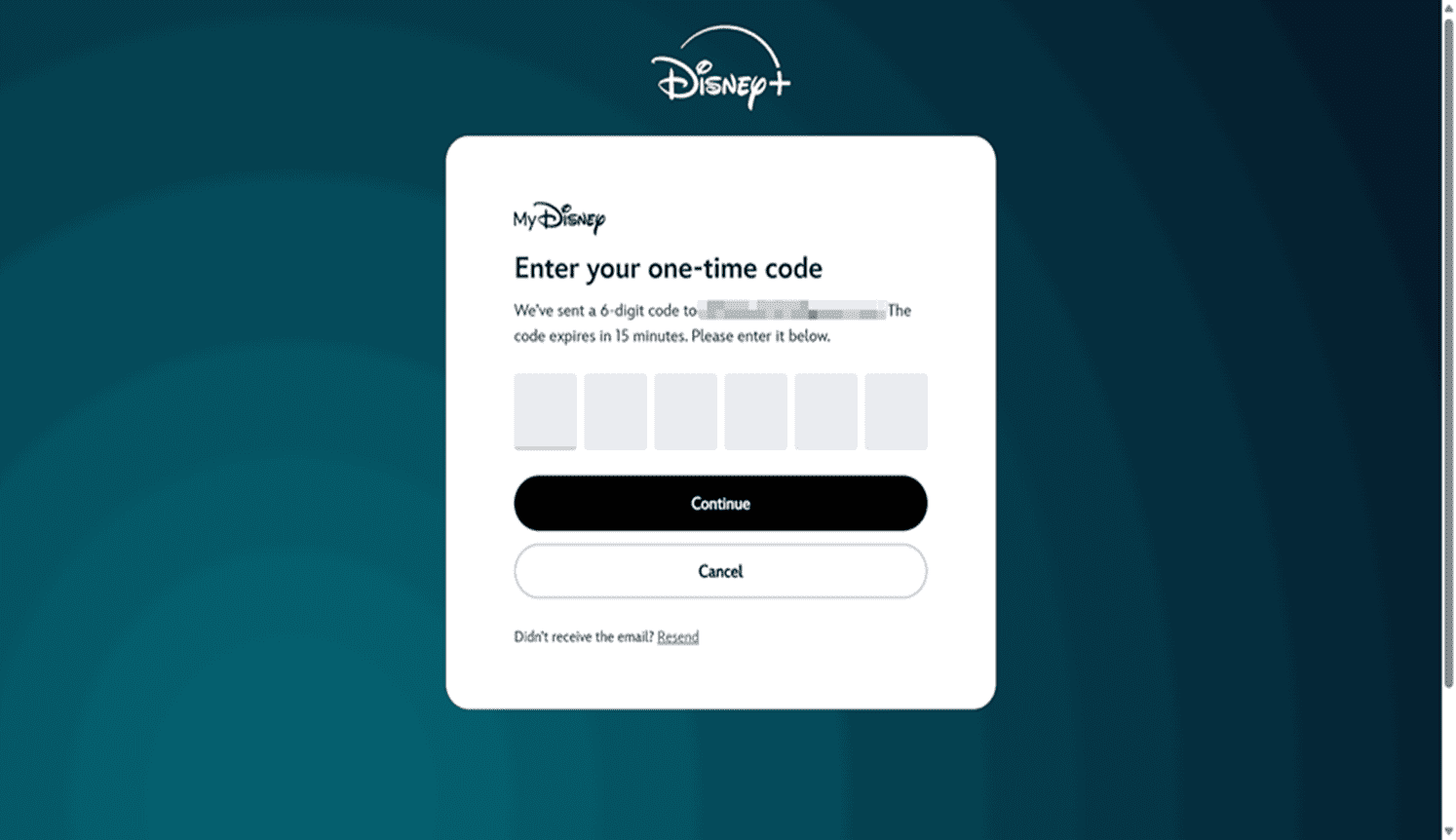
- Step 5: Disney Plus will send you a 6-digit code. Enter that code and continue.
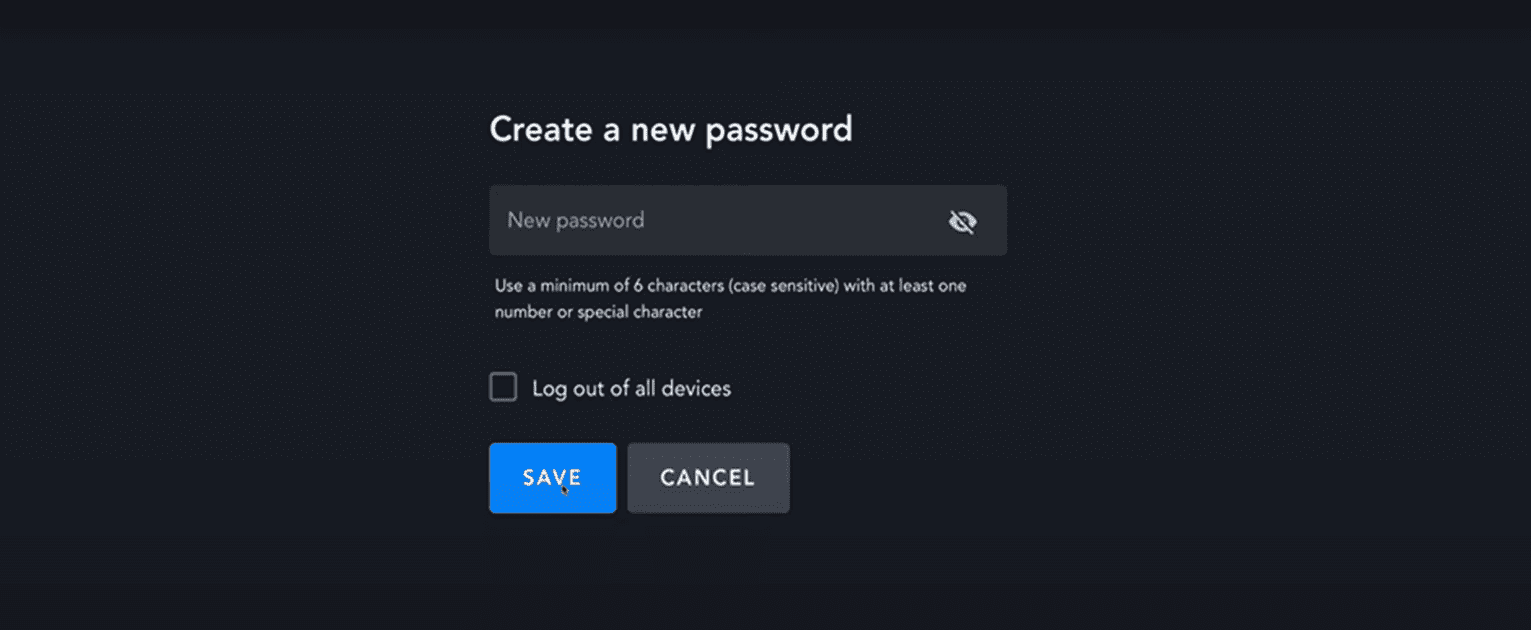
- Step 6: Then, enter the new password. Click Save. You’re done.
How to Change Disney Plus Password via Mobile App
Changing Disney Plus password is simple on phone, and the process is similar as well:
Step 1: Open the Disney Plus app on your mobile device.
Step 2: Tap the profile icon in the bottom right corner.
Step 3: Select Account.
Step 4: Then select Manage with MyDisney.
Step 5: Enter your email and current password to let Disney verify you.
Step 6: Disney will send you a 6-digit code. Enter the code on the app.
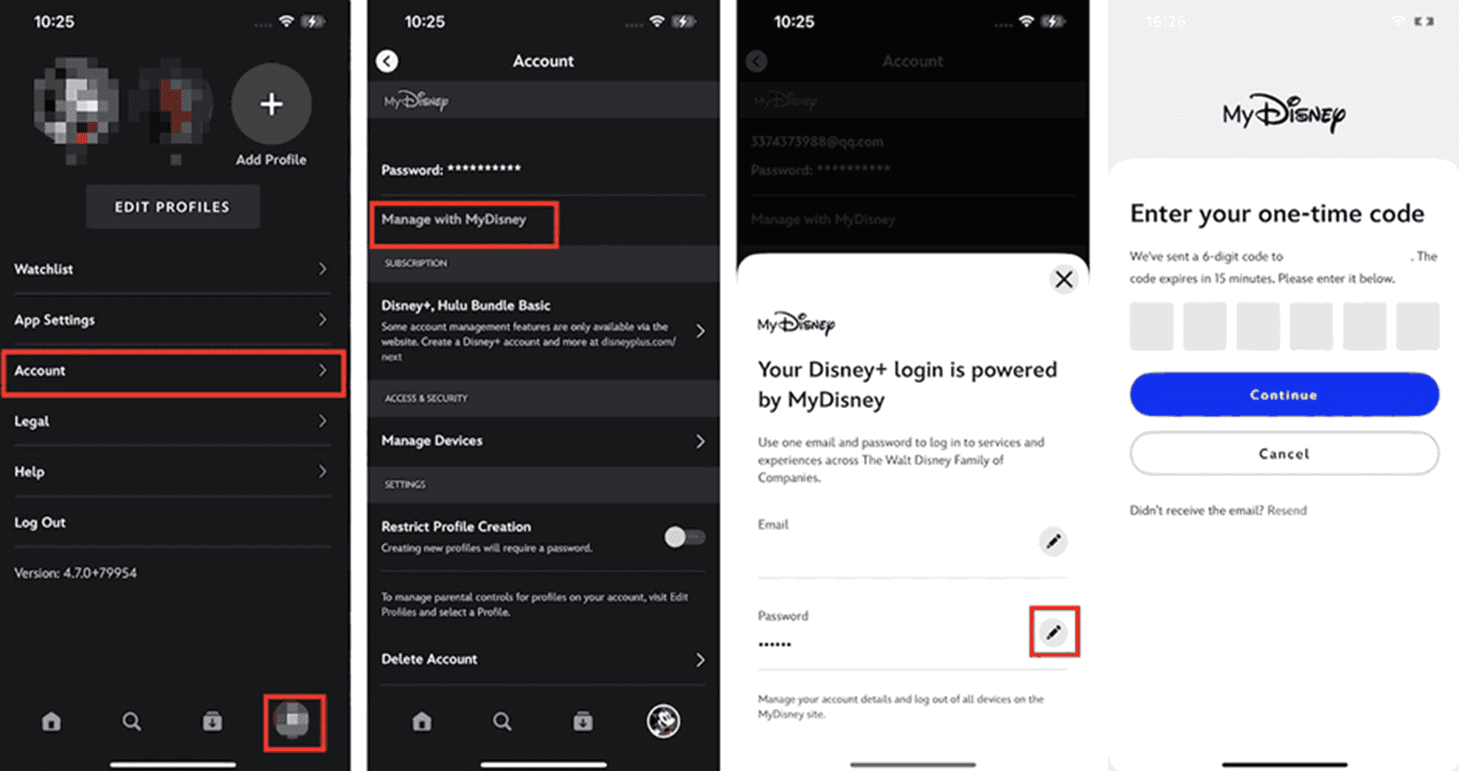
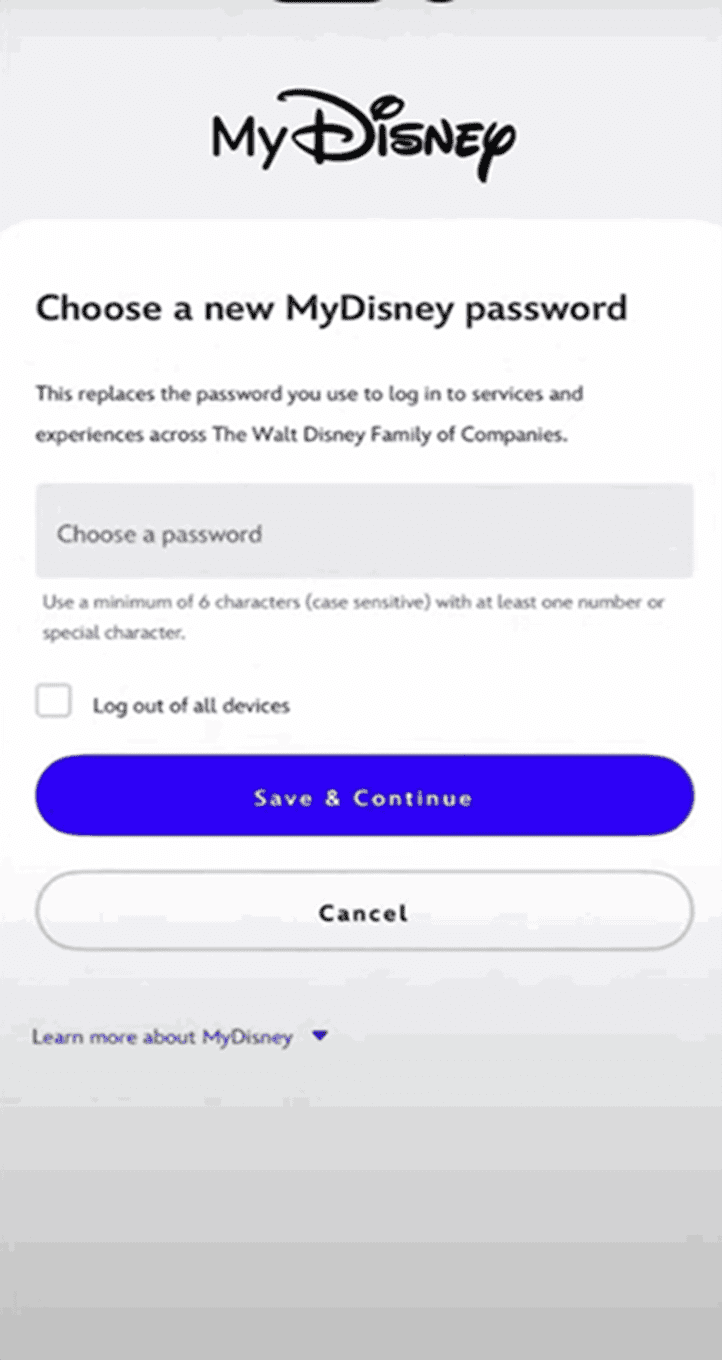
Step 7: Then, you can continue to create a new Disney password.
How to Change Disney Plus Password via Smart TV
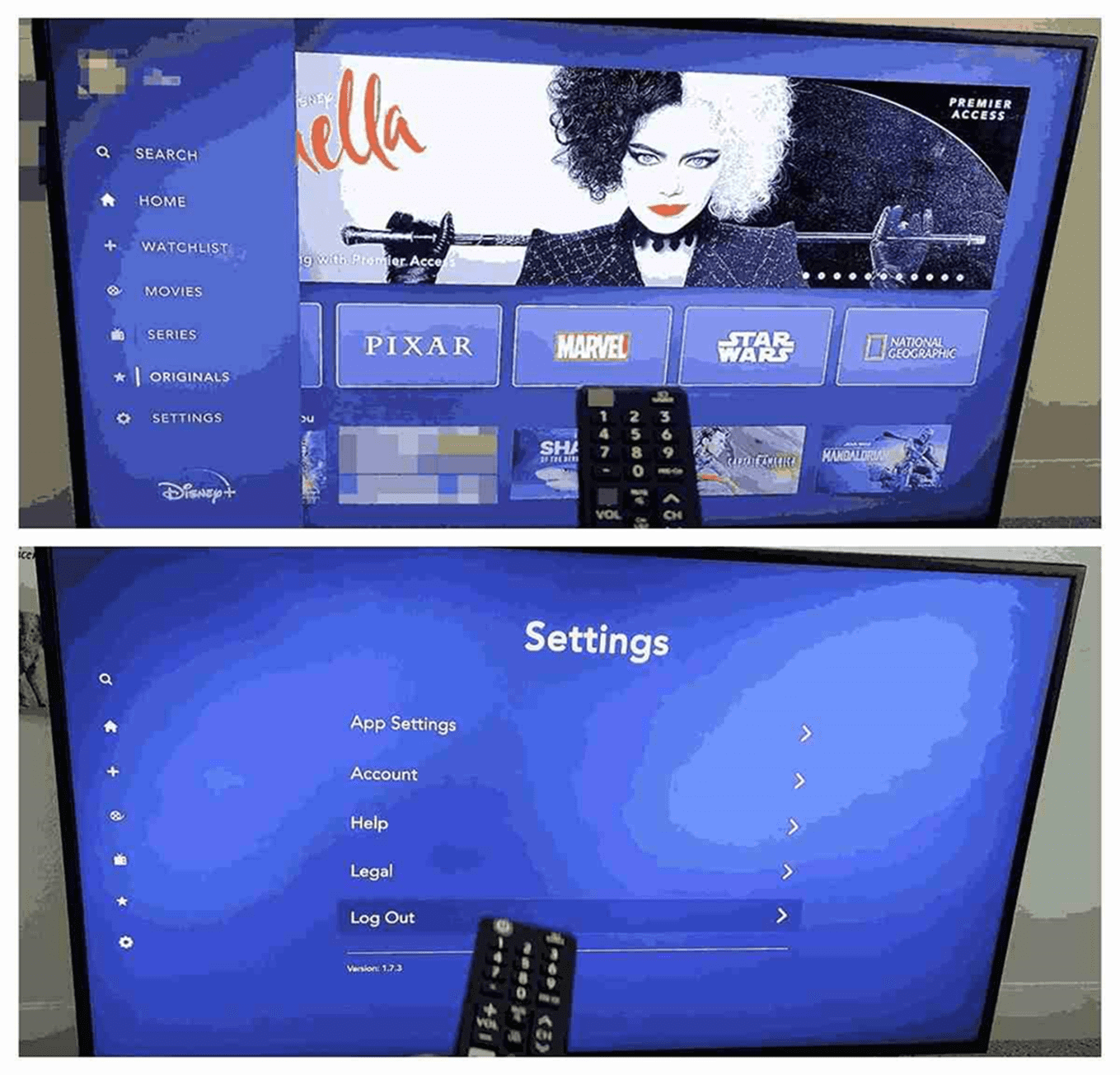
These are general Disney password-changing steps for all smart TVs:
- Step 1: Open the Disney+ app on your Smart TV and sign in.
- Step 2: Navigate to Settings (gear icon), typically located at the top-right or bottom-left of the screen, depending on your TV.
- Step 3: Choose Account.
- Step 4: Scroll down until you see Password, and tap Change Password.
- Step 5: Disney+ will send a 6-digit code to your email, and enter it on the TV screen.
- Step 6: Create a new password and use your remote to select Save.
How to Reset Disney Plus Password
Occasionally, we can forget our password. If that’s the case, you can reset your Disney Plus password, and the process is similar to changing the password:
Step 1: Open www.disneyplus.com in your browser and click Log In.
Step 2: Enter your email. In the Enter your password page, click “Having trouble logging in? Send a one-time code” since you don’t know the current password.
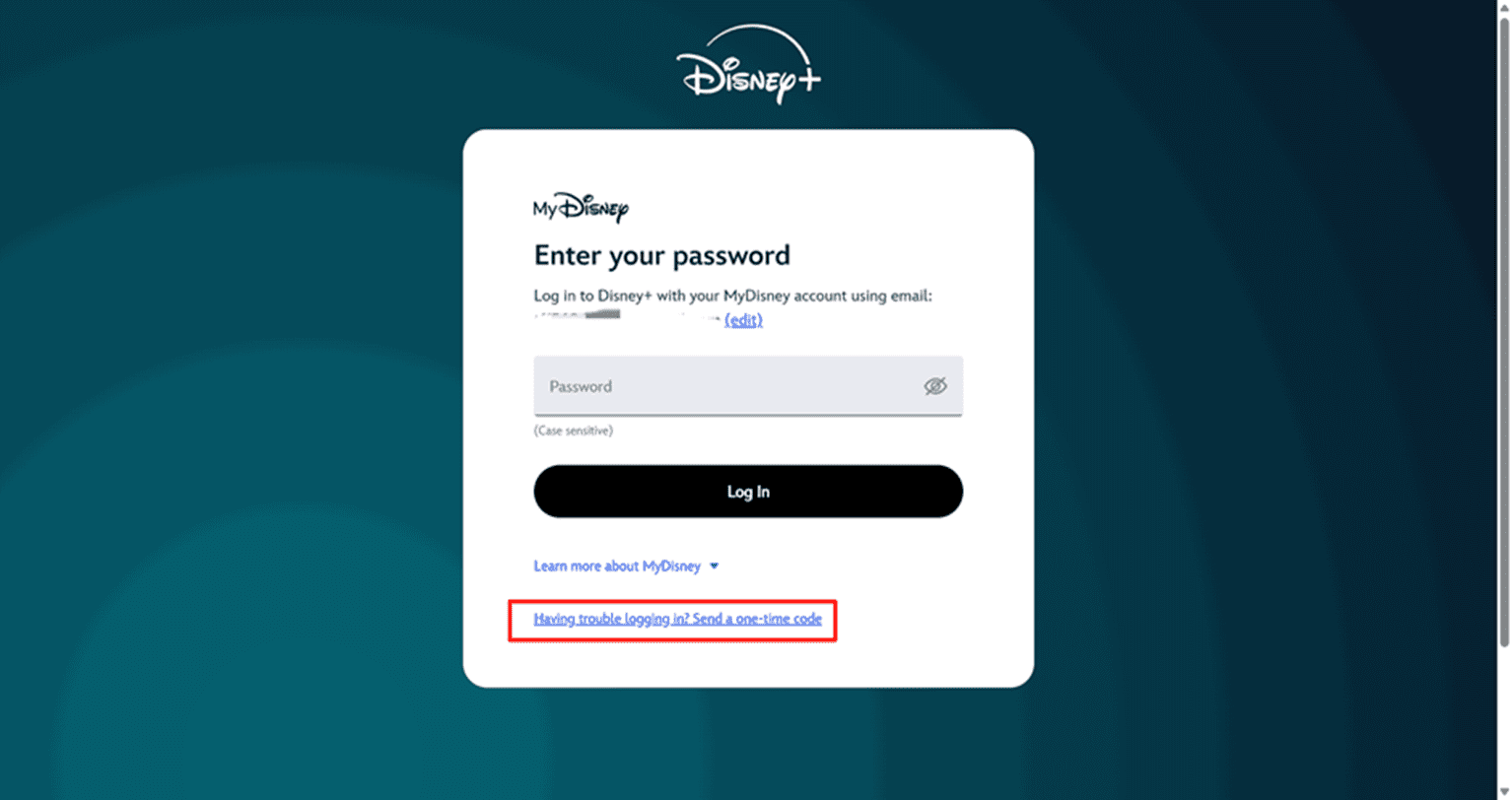
Step 3: Enter your registered email and click Submit.
Step 4: Disney+ will send a 6-digit code to your email.
Step 5: Enter the code on the website and continue. Then, you can create a new password for your Disney Plus account.
Troubleshooting Tips
I thought some of you may encounter issues like I don’t get the code, how do I do? Here are some common issues and how to fix them:
Didn’t receive the email code
- Check your spam email folder to see if the email was sent there.
- Make sure the email address is the correct one.
- If you still cannot see it, after a few minutes, refresh your inbox. You can also request the code again.
Code not working
- Remember, the code does expire (15 minutes).
- If it expires, you have to request a new one.
The new password cannot be saved
- Make sure your new password follows the Disney+ requirements (length, a number, and a special character).
- Refresh your browser or app, or try a different browser or app to do it again.
Still locked out
- If none of the above worked, you can reset the password again or reach out to Disney+ customer support, provide your account email, and they’ll help you get back in.
Tip: I personally like using CleverGet Disney Plus Downloader to download my favourite Disney Plus videos in MP4/MKV in advance, in case I encounter any problems like password not logging in, internet buffering, or traveling outside. So, if you want things easier, this is a great fallback solution when your Disney Plus is not working.
How to Protect Your Disney+ Account
Nobody wants random people screwing around with your watchlist or personal details, and you definitely don’t want them to steal your account and enjoy your subscription!
Here are a couple of things I do to keep my account safe that you can refer to:
Create a strong password:
Use complicated passwords. I never use an obvious password like “123456” or my name. That is for sure risky. Also, don’t use the same password for multiple sites. Change it often to make it secure as well. If you have trouble remembering passwords, a password manager is super recommended.
Be careful about sharing your account:
I no longer share my Disney+ account cause someone changed my settings and my watchlist. Thankfully, they didn’t change my password. But it was still a potential risk, so I decided not to do that. If you still choose to share, just share your account with someone who won’t ruin everything and whom you really trust. But honestly, it’s much easier to keep things private and avoid unnecessary problems later on.
Monitor your Account:
I look at my account activity every so often to make sure my account is secure. You can also do this to see if there is an unknown device that logs into your account. If you find it, change your passwords immediately.
That’s pretty much how I manage it. Nothing too complicated, just a few habits that make sure I’m the only one enjoying my Disney+ account.
Conclusion
Okay, that’s everything you need to know. The steps are pretty simple, and as long as you follow the troubleshooting tips I’ve put together (if you happen to check and something isn’t right), you should be fine. Don’t forget CleverGet Disney Plus Downloader if you encounter any issues or want to watch Disney Plus offline. Just go ahead and enjoy the shows!