A Practical Review of Online Exchange Database Repair Service – Stellar
When an Exchange database becomes unavailable, recovering mailbox data is usually not as simple as restoring a file and moving on. Whether it’s caused by database corruption, mount failures, or transaction log issues, administrators can easily spend hours troubleshooting the problem before users regain access to their mailbox data.
I first heard about Stellar’s Online Exchange Database Repair service from a former colleague while discussing Exchange recovery options. At the time, I was more familiar with traditional recovery tools, so I didn’t pay much attention to it. Recently, I needed to evaluate a few Exchange recovery solutions and remembered that conversation, which gave me the opportunity to finally try the service and see how it performed in practice.
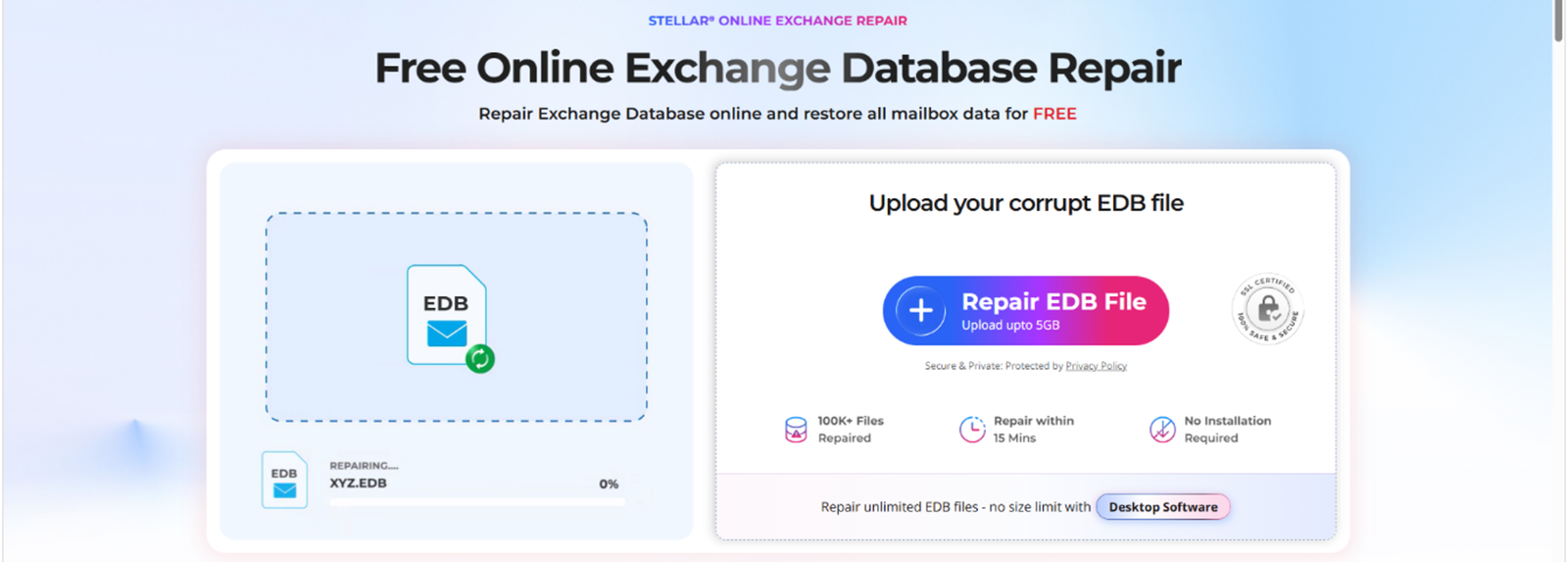
Online Exchange Repair Service by Stellar:
Online Exchange Repair is a web-based service that repairs corrupted or inaccessible Exchange database (EDB) files and recovers mailbox data, including emails, contacts, calendars, tasks, and attachments. Once the recovery is complete, the service allows the recovered mailboxes to be downloaded as PST files while preserving the original folder structure.
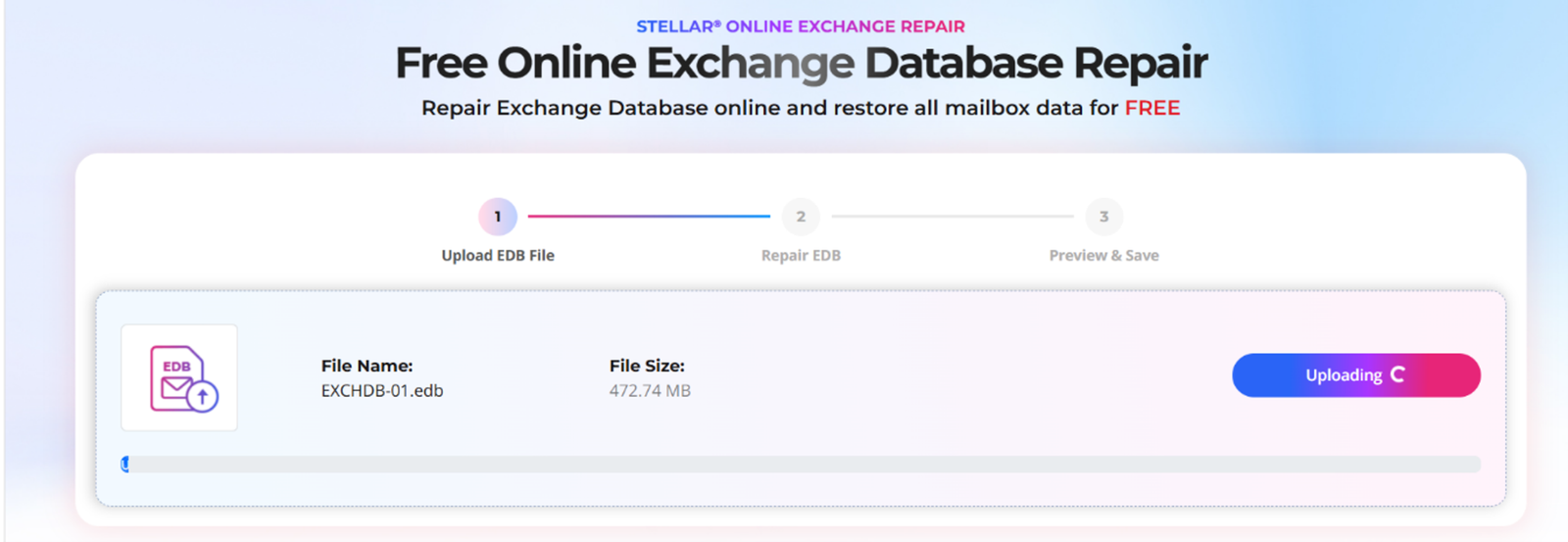
Putting It to the Test:
For this review, I used the free version of the service, which supports EDB files up to 500 MB. My database was a 472.74 MB Exchange Server 2019 EDB file containing two user mailboxes with emails, contacts, calendar items, and attachments.
Getting started was simple. After creating an account, I uploaded the EDB file and initiated the repair process. The service analyzed the database, generated a recovery report, and completed the processing in approximately 10 minutes.
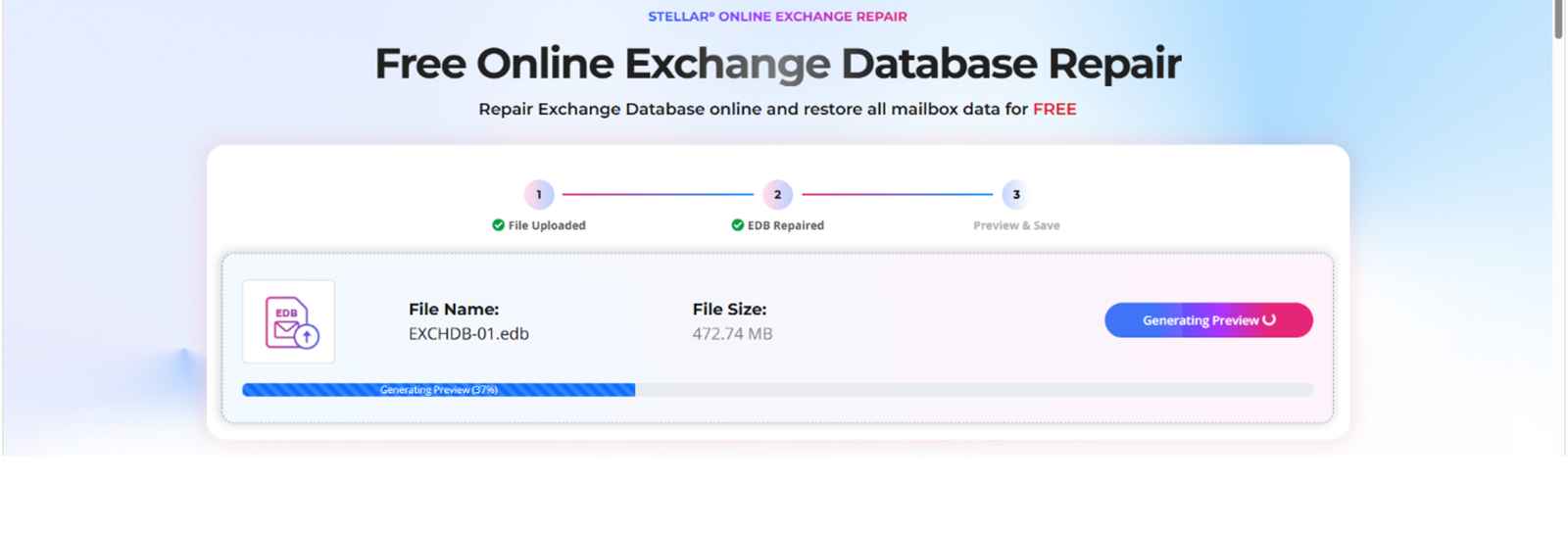
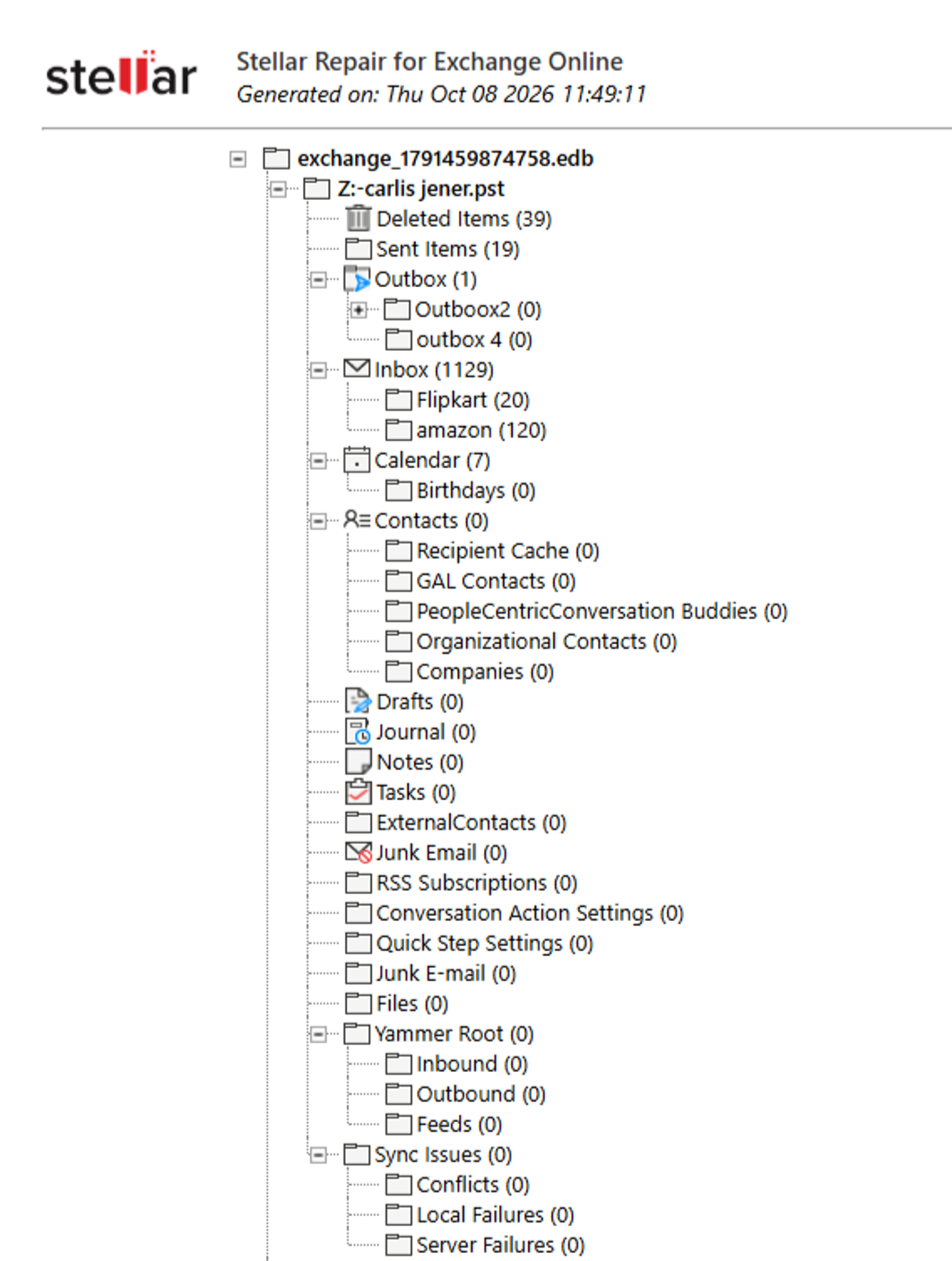
After reviewing the report, I downloaded the recovered mailboxes as PST files and opened them in Outlook for validation. The mailboxes were accessible, and the folder structure was preserved during testing after recovery.

What I liked was that there wasn’t much for me to configure. Most of the process was automated, so I mainly had to upload the file, wait for the repair to finish, and review the results.
Recovery Results:
Once the repair finished, I spent some time reviewing the recovery report and exporting the recovered mailboxes. The database used for testing contained two user mailboxes, including accounts belonging to Finance and HR team members. Although the database was relatively small and recently created, it contained emails, calendar entries, contacts, attachments, and other business-related mailbox data that were important to validate after recovery.
After exporting the mailboxes as PST files, the recovered data was shared with the respective mailbox owners for verification.
User Feedback After Recovery:
- All mailboxes were recovered successfully.
- PST files opened successfully in Outlook.
- Mailbox and folder hierarchy were preserved.
- Emails were accessible and readable.
- Attachments remained available after recovery.
- Individual PST files were generated for each recovered mailbox.
What Worked Well:
What stood out to me was how little effort was required to get started. After creating an account and uploading the EDB file, most of the work happened in the background. I wasn’t spending time configuring settings or working through multiple recovery steps, which made the process easy to follow.
- No software installation required.
- Simple and easy-to-follow recovery workflow.
- Preserved mailbox and folder structure after recovery.
- Ability to verify recovered mailboxes before export.
- Separate PST files generated for each mailbox.
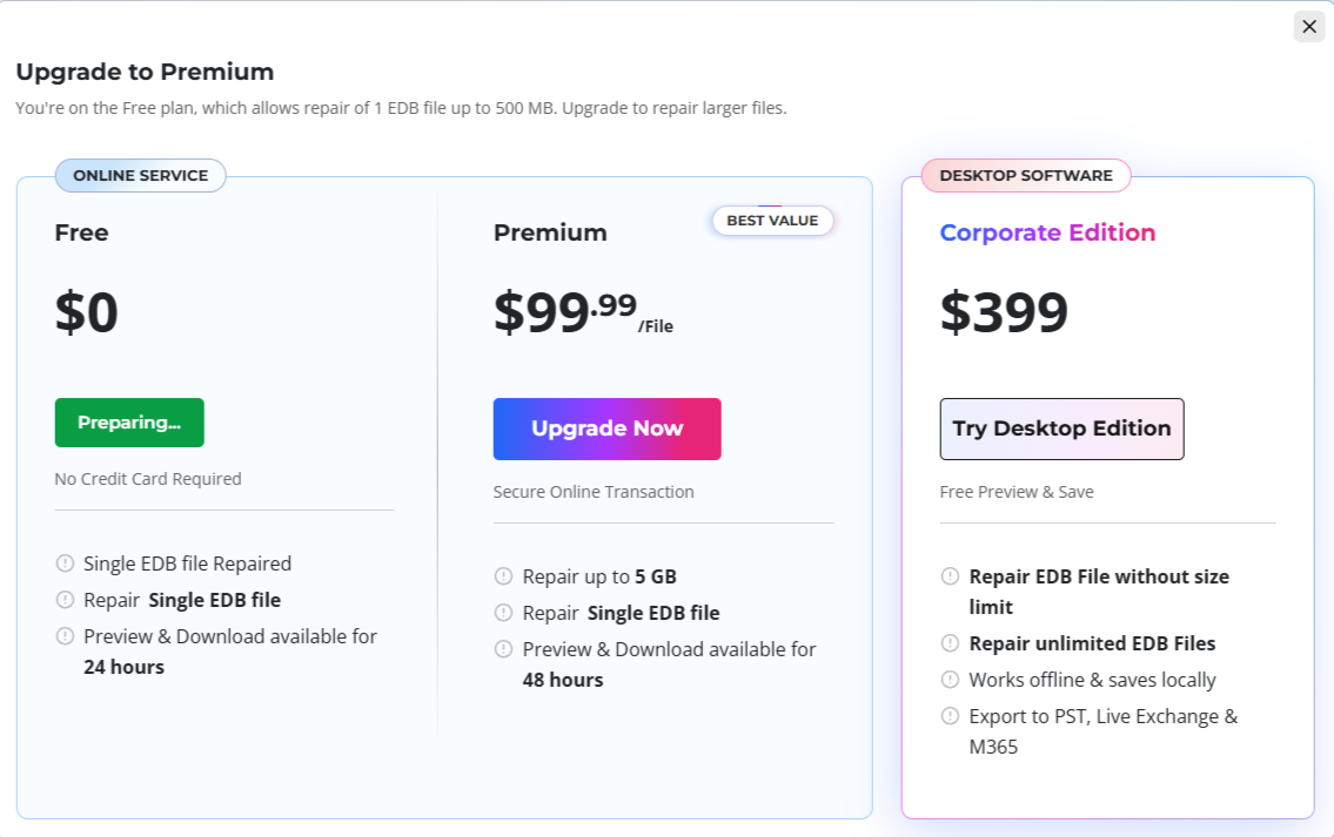
- Recovered data is automatically removed from the service after the retention period (24 hours for the Free plan and 48 hours for the Paid plan), which helps ensure temporary recovery data is not retained longer than necessary.
Overall, the service focuses on making Exchange database recovery accessible without introducing unnecessary complexity.
What Could Be Better:
During testing, there were a few points where I found myself looking for additional functionality that wasn’t available in the online version.
- The recovery report helped confirm which mailboxes and folders had been recovered, but I would have liked the ability to preview individual emails or attachments before exporting the data.
- There are no options to search, filter, or selectively export specific mailboxes or folders.
- Accidentally refreshing the browser during the repair process may require the EDB file to be uploaded again.
None of these limitations affected the actual recovery results during my testing, but I believe they are areas where the overall user experience could be further improved.
The free plan supports recovery of EDB files up to 500 MB, while the paid online plan supports EDB files up to 5 GB. Organizations working with larger databases may need to consider the Desktop software instead.
Desktop Software- Stellar Repair for Exchange
Users who need more flexibility can choose the desktop software of Stellar Repair for Exchange. It offers complete mailbox preview, detailed email and attachment previews, search and filter options, and selective mailbox and folder export, making it easier to find and recover only the required data. Unlike the online version, the desktop software has no file size restrictions, making it a better choice for large EDB files and complex recovery needs.
Final Thoughts:
Based on my experience, the service did what I expected it to do. The EDB file was processed successfully, the recovered mailboxes were exported without issues, and the PST files opened normally in Outlook during validation. For administrators who need access to mailbox data without spending time building a recovery environment, it offers a straightforward recovery option.
No recovery solution is perfect, and there are a few features I’d like to see added in future updates. That said, the service delivered on its primary objective: recovering mailbox data from an EDB file without unnecessary complexity.
Overall, I found Online Exchange Repair Stellar service to be well suited for smaller databases and occasional recovery requirements, while organizations dealing with larger databases or more advanced recovery needs may find the Desktop software to be a better fit.