Bring Your RAID 5 Back to Life—Without a Server or RAID Card
- 1 Why RAID 5 Recovery Without a Server/ RAID Card is Needed
- 2 How to Recover RAID 5 Data Without a Server
- 3 Step-by-Step: Using RAID 5 Recovery Software
- 3.1 Disconnect and Reconnect Drives
- 3.2 Download Stellar Data Recovery Technician
- 3.3 Launch the Software
- 3.4 Choose RAID Recovery Mode
- 3.5 Select RAID Type and Drives
- 3.6 Build the Virtual RAID
- 3.7 Scan and Recover
- 4 Other Ways to Access RAID Drives Without a Server
- 5 Conclusion
RAID 5 is a common storage setup for home users and small businesses that want a mix of speed, storage capacity, and fault tolerance. With its ability to handle one drive failure using distributed parity, RAID 5 often feels like a safety net—until something goes wrong with the server itself.
If your RAID 5 server has gone down due to hardware issues like a faulty motherboard or HBA card, you’re likely facing a situation where the drives are still fine, but you can’t access your data. The good news? You don’t need the original server to recover your files.
Let’s walk you through how you can recover data from RAID 5 drives using your PC and advanced RAID recovery software.
Why RAID 5 Recovery Without a Server/ RAID Card is Needed
RAID 5 setups offer protection against a single disk failure, but not against a complete server hardware crash. If the RAID controller, motherboard, or enclosure fails, the array becomes unreadable, even though your drives may still be in perfect shape.
This is where many users feel stuck. They have working drives, but no way to rebuild the RAID or access the data.
How to Recover RAID 5 Data Without a Server
Whether you’re a DIYer or just want your data back without investing in a new server, recovery is possible with a reliable software solution. One such tool is Stellar Data Recovery Technician. It’s designed to virtually reconstruct failed or inaccessible RAID arrays—even when the RAID parameters aren’t fully known.
It is an advanced RAID 5 data recovery software that lets users perform data recovery on inaccessible, failed, or crashed RAID 0, 5, and 6 and Hybrid RAID arrays. The software utilizes its specialized algorithms to reconstruct the failed RAID and scan it for any recoverable data.
Here’s a simplified guide to help you recover data from your RAID 5 drives using this tool.
Step-by-Step: Using RAID 5 Recovery Software
Disconnect and Reconnect Drives
Carefully remove all member drives from your RAID 5 array and connect them to a Windows PC using SATA ports or a compatible docking station.
Download Stellar Data Recovery Technician
Install the software on the PC where the drives are connected.
Launch the Software

Open the program and choose the type of data you want to recover. You can select everything or specific file types.
Choose RAID Recovery Mode
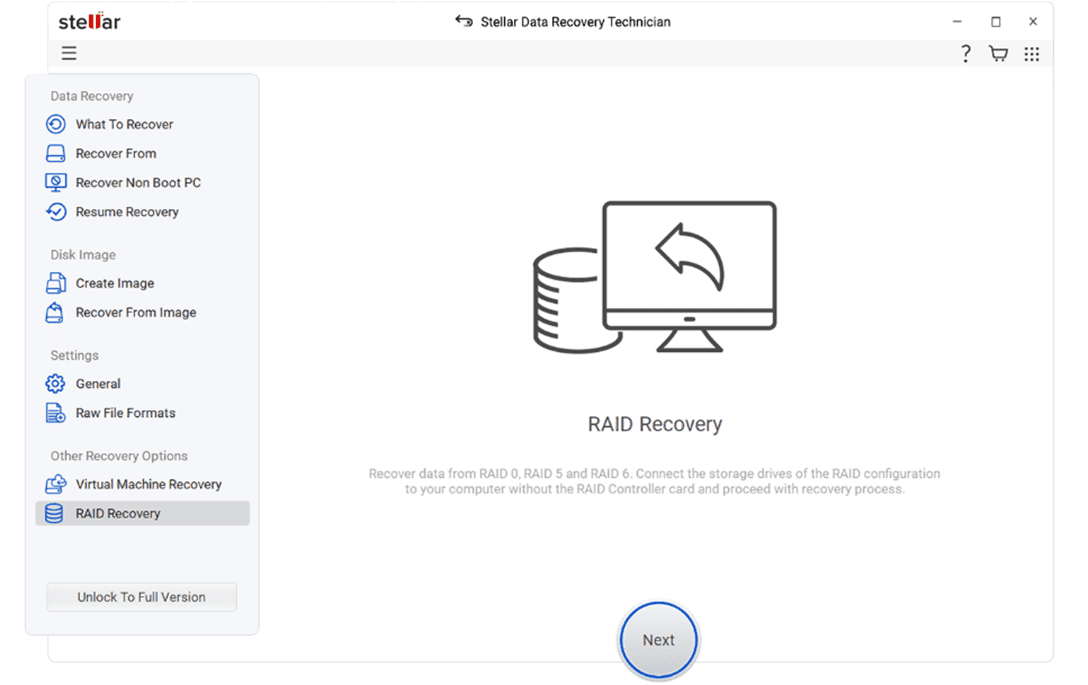
On the next screen, pick RAID Recovery. The software will then guide you into the RAID reconstruction module.
Select RAID Type and Drives
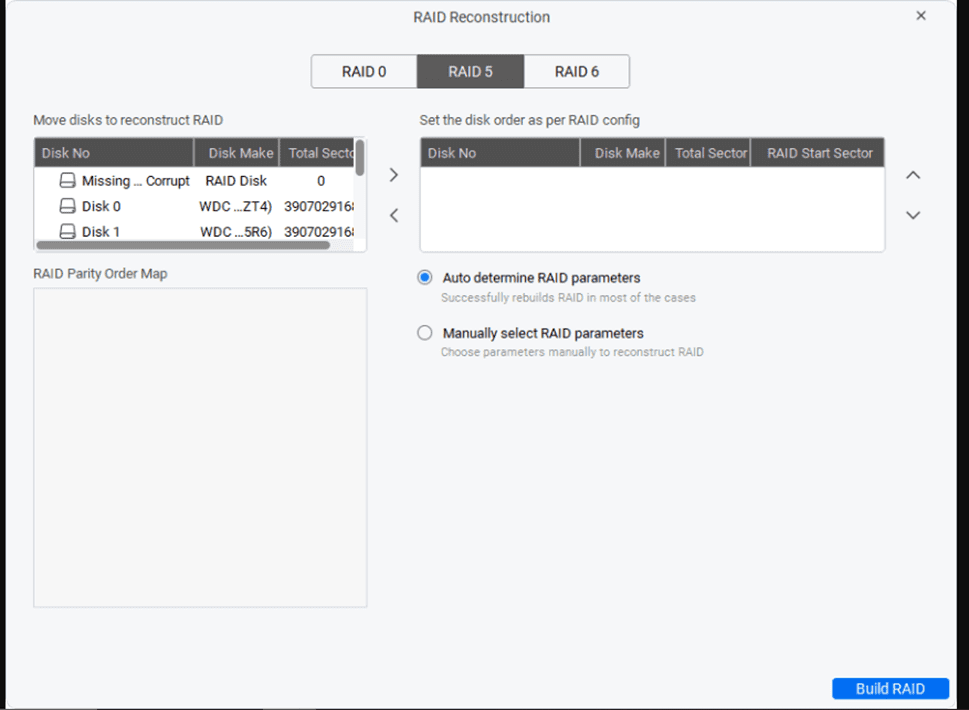
- Choose RAID 5.
- Drag your RAID drives into the correct order (if known)
- Let the software auto-detect RAID parameters, or input them manually if you know the details like stripe/block size, parity order, etc.
Build the Virtual RAID
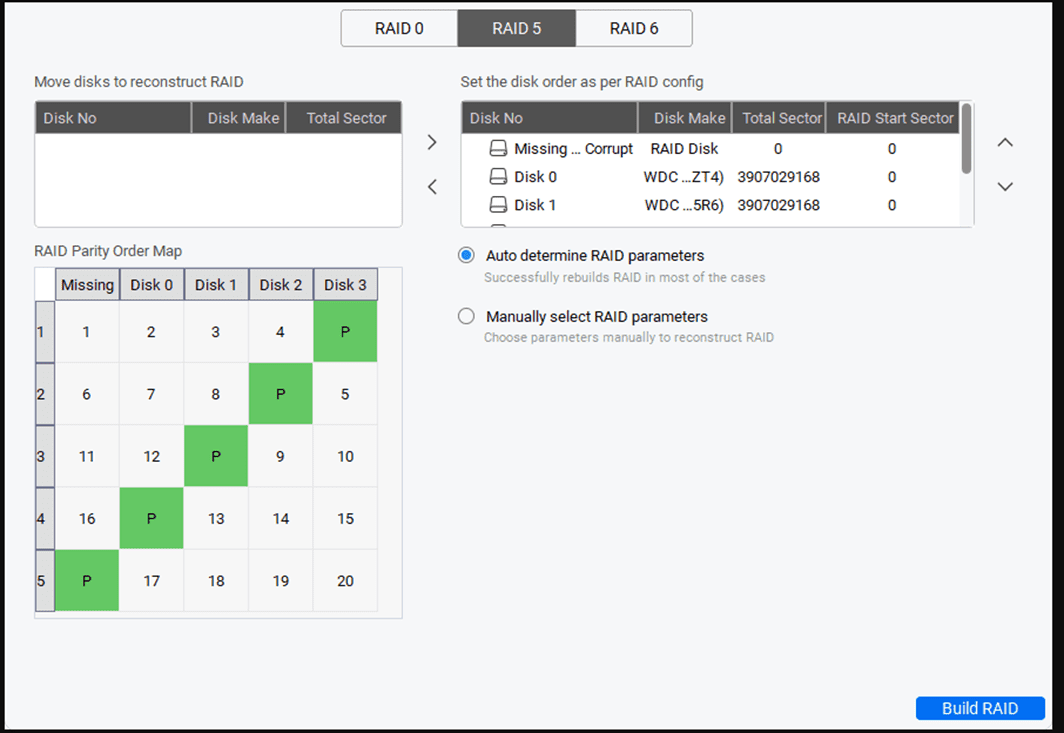
The tool will simulate the original RAID 5 structure. Once done, click Show Volume List to see available volumes.
Scan and Recover
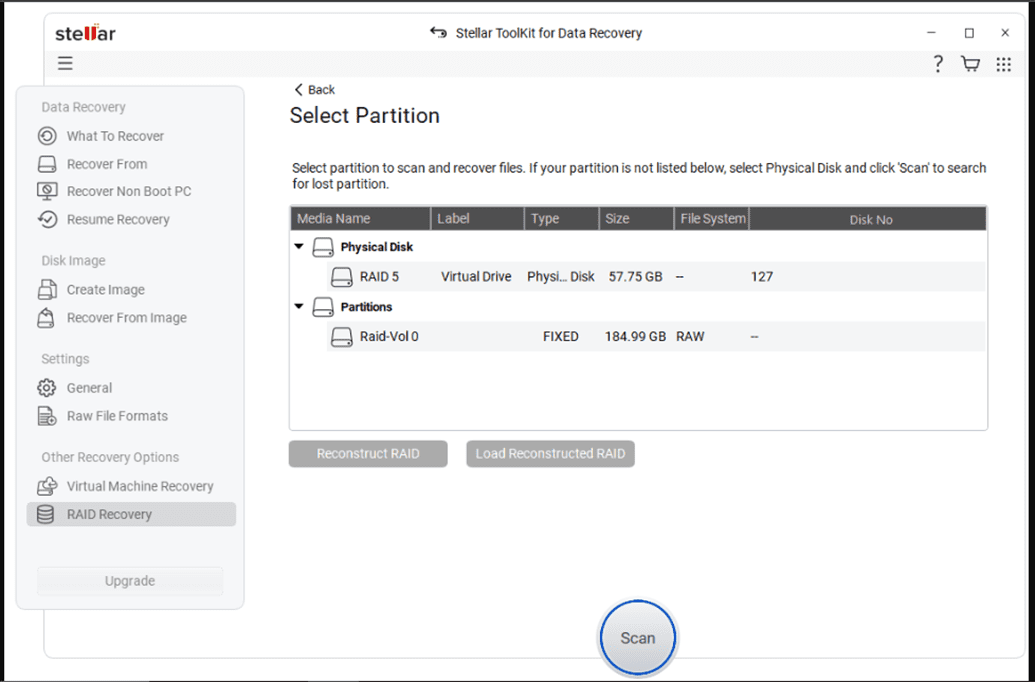
- Select the volume or physical disk you want to recover from.
- Let the scan complete.
- Preview the recoverable files and select what you need.
- Click Recover to save them to a safe destination.
Other Ways to Access RAID Drives Without a Server
Besides using software, another option is to use a different machine with a compatible HBA RAID card flashed into IT (Initiator Target) mode. This lets the system read the drives as individual disks, allowing you to rebuild the array manually or access the disks through software like Stellar.
Important: Flashing an HBA card into IT mode is an advanced operation. Always follow the card manufacturer’s official guide and firmware to avoid making things worse.
Conclusion
RAID 5 is designed to be reliable, but hardware failure can bring the entire setup to a halt, especially when it’s not the drives but the server itself that breaks down. The good news is that your data isn’t gone. With the right RAID 5 recovery software and a bit of patience, you can rebuild the array and recover your files without needing the original server.
Whether you’re dealing with business-critical documents or years of personal data, tools like Stellar Data Recovery Technician make it possible to perform DIY RAID 5 recovery from home—no server required.