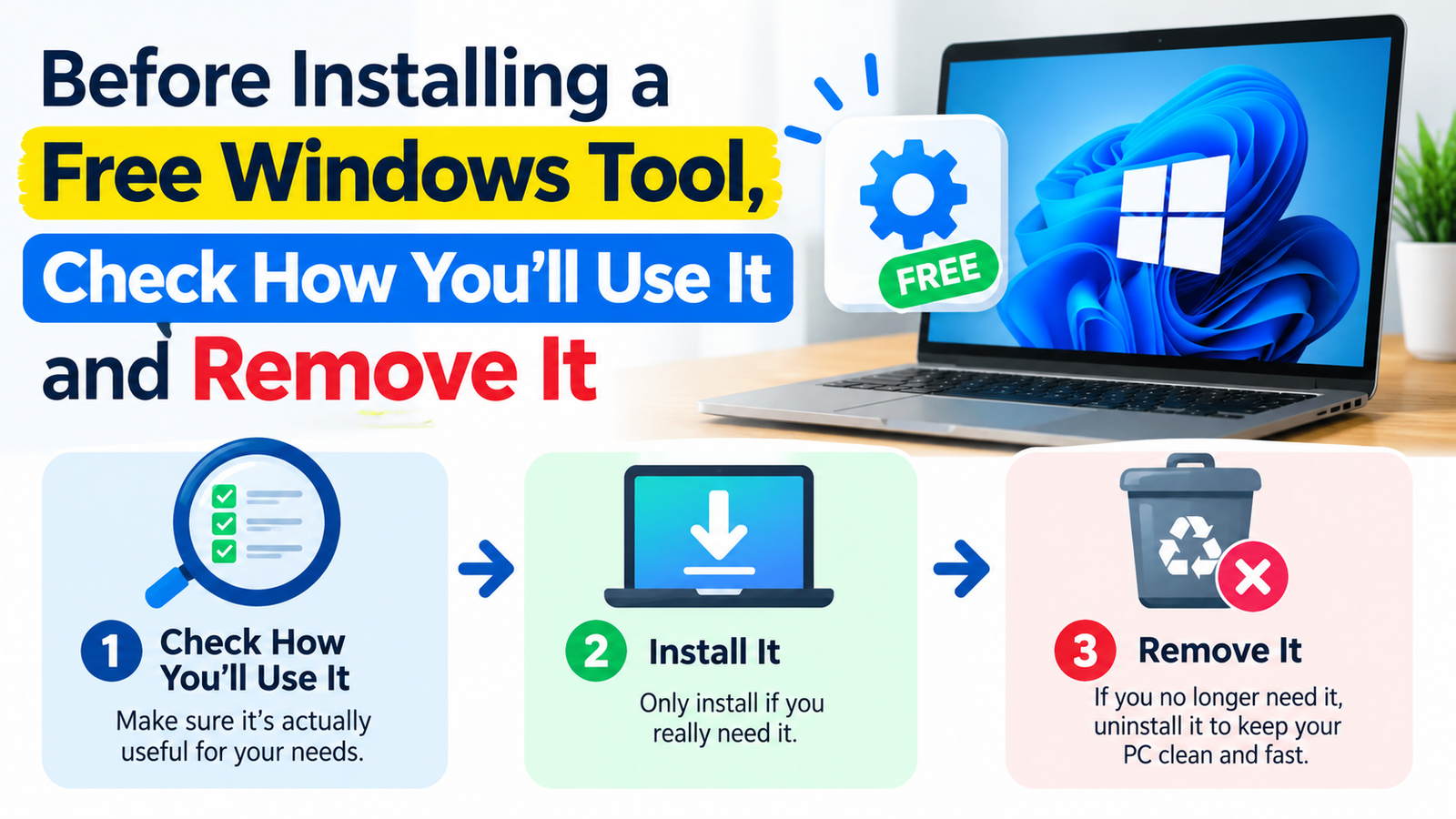
Before Installing a Free Windows Tool, Check How You’ll Use It and Remove It
- 1 Introduction: What to Check Before Installing a Free Windows Tool
- 2 Follow The specified way through the installer of the product
- 3 Give the tool one job
- 3.1 Understanding the Purpose of the Tool
- 3.2 Understanding Free Software Plans and Limitations
- 3.3 Evaluating Free VPN Features
- 3.4 Avoiding Multiple Tools During Testing
- 4 Assign the permission to the function
- 4.1 Reviewing Permission Requests
- 4.2 Using Windows Privacy Controls
- 4.3 Checking Startup Behaviour and Background Services
- 5 Experiment with something you can afford to screw up
- 5.1 Testing With Sample Files and Simple Tasks
- 5.2 Monitoring Performance and Unexpected Behaviour
- 5.3 Following Workplace Software Policies
- 6 Keep an eye on the exit during this time while it is all new
- 7 Conclusion: Make an Informed Decision About Free Windows Tools
Introduction: What to Check Before Installing a Free Windows Tool
For a start, even the download button is easy to find. The difficult queries come next: what version you installed, why does it need that permission and how do you disable the feature you wanted to test only?
With a free Windows tool, just a little checking before installation could keep you from needing to perform an evaluation cleanup. You do not need to analyze every line of code. You must see where it comes from, the justification for the tool to be in there and how you could change your mind without burning out.
Follow The specified way through the installer of the product
Downloading From an Official Source
Begin with either the official product website or a relevant recognised app-store listing. If the website sends you to a store, make sure to compare the publisher information and product name instead of clicking on first similarly named result.
Asking a third party to provide an advertisement in the form of a search ad or a large button that literally sits on page is not proof that the file originated with the developer. Take a look along with the direction shown by this product.
Checking the Windows Version and Download Details
Let us assume you want to download a VPN, find an official source and search for the version of Windows that is supported. It also provides a place to view documentation and plan for differences before you get started. An irrelevant page can have a link with the word download and can redirect somewhere else.
Record the installer you selected. If applicable, note the version of product and where it was installed from. At least you will have more useful information than what colour of the download button that you were clicking on if support had ask what you run later.
Give the tool one job
Understanding the Purpose of the Tool
Don’t take optional extras until you know what you want it to do, The format should be handled using a file converter. It is impossible for a meeting tool to function without both the account and devices necessary. A connection client must know what type of traffic it will route.
Understanding Free Software Plans and Limitations
Free can describe different offers. A product could be a reliant free to enterprise plan, transitory trial or sustaining paid assistance with a no-cost device. Limitations of readingIn general, you ought to read between the lines and not make the assumption that each one feature visible in their interface is part of it until October 2023.
Evaluating Free VPN Features
When reviewing a free VPN, investigate whether its Windows-specific controls and the available connection alternatives align with your existing needs. One job may be fine with a simple free plan but another may require plenty of features that a free plan just does not provide. That is a reason to be selective, not proof that one plan is any better than the other.
Avoiding Multiple Tools During Testing
Do not install multiple contending tools at once in a test However, if only one new programme is introduced, then there will be a far clearer explanation when behaviour changes.
Assign the permission to the function
Reviewing Permission Requests
A good permission request has a clear correlation with the activity. For example, a video-call app may require access to your microphone. For a network client, an operating system permission may required to establish a connection. But powerful sounding request is not a diagnosis by itself.
Take a break when you are unable to rationalize why the privilege is necessary. Prior to accepting, review the developer documentation or support details. Denying a permission that is required will cause the tool to stop functioning while accepting an unrelated one can give it more access than you intended.
Using Windows Privacy Controls
Windows also has privacy controls for things like the camera and microphone. Microsoft also points out that availability of some desktop applications there is limited or the way they are controlled. Think of those settings as convenient knobs, not an exhaustive listing of everything a program can do.
Checking Startup Behaviour and Background Services
Check optional startup behaviour separately. A tool that will either launch at boot time, or keep a helper service running may continue to do its thing post test window closure. Locate it in the controls, and see if turning it off is going to interrupt us.
Experiment with something you can afford to screw up
Testing With Sample Files and Simple Tasks
Load a small sample file, an innocent test meeting or a simple connectivity check based on which tool do you use. Do not upload your one and only copy of a critical document, or alter the network setup right before a deadline.
Monitoring Performance and Unexpected Behaviour
Look at the outcome, and how much you had to put into it to achieve. Did the tool perform that task correctly? Were there unexpected prompts? Was it obtrusive in some way with regards to an current application?? Do not patch together a series of unrelated changes to move past something; Save helpful error messages.
Following Workplace Software Policies
In case of a work computer involved in the task, comply with the software policy set by the organisation. Just because you can access the installer, does not give you permission to add it to managed equipment.
Keep an eye on the exit during this time while it is all new
Finding Uninstall and Removal Instructions
Find the supported uninstall or removal instructions You need to see what happens to any account, subscription or cloud data you use for integrations during setup as well. Uninstalling the Windows application does not necessarily cancel a subscription or erase data contained in a web account.
Removing Integrations and Revoking Access
Removal is just another browser action for extensibility. For an all-in-one tool, you may need to disable access on settings from the other services.
Conclusion: Make an Informed Decision About Free Windows Tools
A fruitful trial results in a conscious decision: filter out any extraneous pieces from the tool, or retain it to fulfil one specific purpose. Free software is vastly more evaluable when the source, permissions and exit are clear from the outset rather than in a train of accounts lost to time and background processes.