Excel File Corrupted? Fix With Top Solutions!
- 1 Part 1. Why Did My Excel File Get Corrupted?
- 2 Part 2. Basic Signs to Determine if My Excel is Corrupted
- 3 Part 3. Top Method to Repair a Corrupted Excel File in 2025
- 3.1 Key Features
- 4 Complete Tutorial to Help You Repair Damaged Excel Files
- 4.1 Step 1. Start with Repairing the Corrupted Excel File
- 4.2 Step 2. Add Your Damaged Excel File into Repairit
- 4.3 Step 3. Download Your Repaired Excel Files
- 5 Part 4. Other Methods to Perform Excel Spreadsheet Repair
- 5.1 1. Using Open and Repair in Excel
- 5.2 2. Accessing Previous Version (Windows Only)
- 5.3 3. Convert Excel File to Other Formats
- 6 Part 5. How to Avoid Excel Spreadsheet Corruption?
- 7 Conclusion
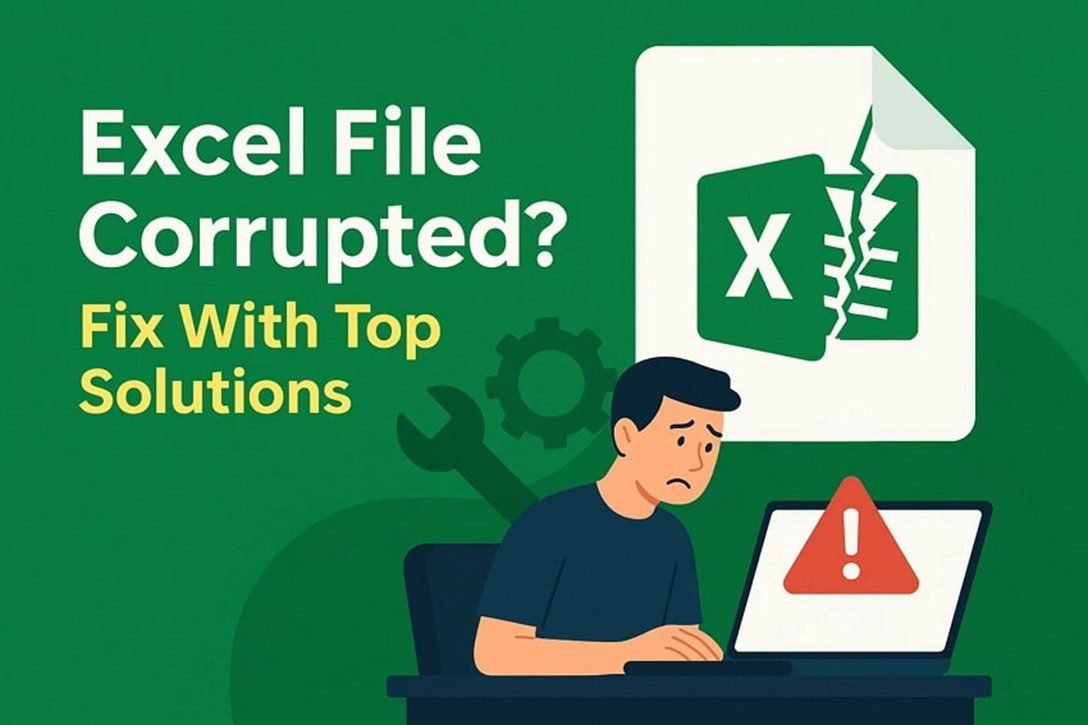
The corruption and formatting errors are frequent issues with the documents, and your Excel spreadsheets are not an exception. Think about the time you spend arranging your research data and opening the file to be greeted by an error message or a completely blank worksheet. The only thing you can have is a starting mistake or a blank page at best.
That brings us to the most crucial question: How can you retrieve a corrupt Excel file? Using an effective Excel repair tool can be a good solution among several others. In this article, we will cover the reasons, signs, and recovery options for damaged Excel files.
Part 1. Why Did My Excel File Get Corrupted?
Let’s understand some of the common causes of damage when it comes to corrupted Excel files:
- Force Closing Your File: Closing your Excel file without saving it properly can damage it. The same happens when you force shut down your system during ongoing work on your sheet.
- Computer Viruses: Malware and viruses can severely damage your Excel files and other documents. Professional organizations and business setups are the major victims of this problem.
- Hardware Issues: Physical problems with storage devices can damage the files stored in them, such as bad sectors of your drives. This happens to your Excel files, and you might need to perform Excel spreadsheet repair.
- Format Incompatibility: Corruption happens when you open your Excel file using programs that are incompatible with its format. It is most common when the Excel sheet has advanced features that are not identified by the program.
- Accidental Overwriting: Deleting or overwriting important information by mistake can cause data loss. The file recovery attempts can worsen the problem and damage the file completely when performed incorrectly.
Part 2. Basic Signs to Determine if My Excel is Corrupted
After learning about the problematic factors, here are some basic signs that indicate corruption in your Excel file:
- Excel File Opening Issue: File not opening or showing an error, such as “Excel cannot Open The File,” is a common sign of corruption.
- Missing File Data: Corruption can make certain parts of your Excel file’s data disappear, necessitating an Excel spreadsheet repair.
- Invalid Data: Unreadable or invalid content error indicates the presence of damaged data in your Excel file.
- Excel Freezes: When your Excel suddenly crashes or freezes, it shows that your file contains damaged data.
- Formulas Stop Working: When Excel formulas start misbehaving and displaying random errors, it indicates problems in your file.
Part 3. Top Method to Repair a Corrupted Excel File in 2025
First off, Repairit lets you seamlessly repair corrupted Excel files. This tool is among the best file repair software available today, supporting 30+ file formats, including Excel files. It uses AI technology to fix corrupted data and can perform batch file repairs, saving valuable time and effort. In addition to Repairit’s software, you also have the option to perform file repairs online within your browser.
Repairit File Repair will allow you to easily repair corrupted formulas, missing content, and unreadable data in your Excel files. It supports various Excel formats such as XLS and XLSX, offering maximum convenience. You can also preview the final results of your repaired Excel file and then download it. It does not store your files, ensuring complete privacy and well-encrypted data protection.
Key Features
- Supports All Excel Features: With Repairit, you can conveniently repair all the damaged components of an Excel file, including formulas and workbooks.
- Full Platform Compatibility: Conveniently perform Excel spreadsheet repair across operating systems, including both Windows and iOS.
- Unlimited Processing: Simultaneously repair multiple Excel files without any size or quantity limits, speeding up your workflow manifold.
Complete Tutorial to Help You Repair Damaged Excel Files
To repair your damaged Excel file using Repairit, simply follow the process discussed below:
Step 1. Start with Repairing the Corrupted Excel File
Initiate the process by running this software on your computer, from where you need to navigate to the “More Types Repair” tab. Look for the “Document Repair” feature and proceed with the “Start” button.

Step 2. Add Your Damaged Excel File into Repairit
When the new screen loads, hit the “+Add Files” button to import your damaged Excel files and press the “Repair” button to initiate the repair procedure.

Step 3. Download Your Repaired Excel Files
After the procedure of this Excel repair tool is complete, check the results by pressing the “Preview” button. Else, save your results by clicking the “Save All” button and then pressing the “Save” button from the pop-up.

Part 4. Other Methods to Perform Excel Spreadsheet Repair
After covering the best method of Excel file recovery, let’s explore a few more ways of doing that:
1. Using Open and Repair in Excel
Excel’s “Open and Repair” option lets you conveniently fix your broken spreadsheets. It is designed to achieve the maximum possible recovery of data from a damaged Excel file. You can use it to repair damaged data, including text, formulas, tables, and formatting errors.
So, follow the steps below to utilize this feature and perform Excel spreadsheet repair effectively:
Step 1. Start by launching the “Excel” app as a blank document on your system and go to the “File” menu. Press the “Open” button to access the “Browse” option. Upon selecting, choose the corrupted Excel file from the File Explorer menu that appears, and select the “Open and Repair” option from the “Open” menu.
Step 2. In the next pop-up window, click on the “Repair” button to start the recovery process.
2. Accessing Previous Version (Windows Only)
The previous file version feature of Windows, when enabled, is the most convenient method to repair corrupted Excel files. This feature’s unique benefit is that it lets you recover a past version of your file before the corruption occurred. Plus, the built-in Windows feature enables this functionality without requiring any additional software.
Here are the detailed instructions to gain access to the previous version of your Excel file in Windows:
Step 1. Access the “Properties” window by right-clicking on your corrupted Excel file in the file explorer.
Step 2. In the “Previous Versions” section, right-click on your desired file to open the drop-down menu. Hit the “Restore” button and press “OK” to see if the file has been restored.
3. Convert Excel File to Other Formats
The other easy alternative to repair a corrupted Excel file is to convert it to another format, e.g., PDF. A widely used format, such as PDF, not only assists in retrieving your corrupted Excel data but also makes it accessible as it is widely compatible. This can be done using various file conversion tools that include Adobe Acrobat.
This is how you can change your damaged Excel file to a PDF with the help of Adobe Acrobat:
Step 1. Upload your file on Adobe’s “Convert Excel To PDF” page by pressing the “Select A File” button.
Step 2. Upon the automatic completion of the process, click the “Download” button and save your converted file.
Part 5. How to Avoid Excel Spreadsheet Corruption?
To perform Excel spreadsheet repair is good, but avoiding the damage is even better, and here is how you can do that:
- Avoid Forced Closing: Avoid damaging your data by not abruptly closing your Excel file or shutting down the system when you have not saved it.
- Maintain Formatting: Large and complicated Excel files have a higher corruption rate, and therefore, avoid a complex and extensive use of advanced formatting and formulas.
- Update Regularly: Keep both the Excel program and your operating system updated to maintain up-to-date file security.
- Don’t Concurrently Edit: Refrain from simultaneously editing the same file in a team, as this increases the risk of file damage.
- Minimize External Links: Avoid adding a high volume of external links to your Excel files, as they increase vulnerabilities.
Conclusion
Summing up, several factors can lead to the corruption of your Excel file and result in the loss of important data. Keep looking for abnormal signs like sudden crashes and opening errors for early detection and correction. Choose Repairit as your go-to Excel repair tool to manage your workflow efficiently and avoid crucial data loss. Conversely, you can simply follow our tips to keep your Excel files safe from corruption.