How to calculate power supply capacity for a custom PC?
- 1 Why is it important to calculate the right PSU wattage for your build?
- 2 What components consume the most power in a custom PC?
- 3 How do you estimate power consumption for the CPU and GPU?
- 4 Should you include extra wattage for future upgrades or overclocking?
- 5 How can you use online PSU calculators effectively?
- 6 What are the risks of choosing a PSU with too low or too high wattage?
- 7 Conclusion
Why is it important to calculate the right PSU wattage for your build?
Correctly calculating PSU power helps your PC run smoothly and keeps all components safe from damage. To get the most accurate results, we advise using Seasonic’s PC power supply calculator. It takes into account an extra 15-20% power reserve so the PSU doesn’t operate at maximum capacity, but has enough power to support the PC without overheating.
If the PSU you choose does not meet the actual system’s needs, especially during peak loads, this can cause a number of consequences. There’s a chance that protection will kick in, the PC will shut down suddenly, or other components might get damaged. It directly affects the safety of your PC and the longevity of its components.
What components consume the most power in a custom PC?
The following components are the most power-consuming parts in a custom PC:
GPU – the most powerful energy consumer in most modern setups, especially gaming or rendering systems. Powerful models can consume over 300 W, and even more at peak load. Like the NVIDIA GeForce RTX 3090, which consumes up to 630 W at peak loads.
CPU – energy consumption can exceed 200 W, depending on the model.
Motherboards, RAM, hard drives (HDD/SSD) – consume energy, but less than CPUs and GPUs. For example, the motherboard can consume about 30 W, and each SSD can consume up to 4 W.
Cooling systems – the fans and other cooling components don’t make a big difference in overall energy usage. They typically consume between 1 W and 5 W each.
How do you estimate power consumption for the CPU and GPU?
To accurately count the CPU and GPU power consumption in a custom PC, you need to focus on several reliable approaches.
First, check the official component specifications. Manufacturers usually specify the TDP (Thermal Design Power) there. In simple terms, it’s the heat your cooler needs to handle during regular processor use.
But it is important to acknowledge that the actual power consumption of the CPU and GPU might be higher. Especially when talking about overclocking modes or under load. Usually, a factor of 1.5x TDP is used to estimate consumption in this scenario.
To get a more accurate estimate of CPU and GPU consumption, add the maximum values they can consume and add a margin of 10–25% to this sum. This helps you handle sudden spikes in power use and keep your system running like a clockwork.
Should you include extra wattage for future upgrades or overclocking?
Yes. Adding extra power helps with spikes, ensures stability, and supports future upgrades. In other words, in this scenario, your power supply will not be working at maximum capacity. This, in turn, affects the longevity of your PC and its components.
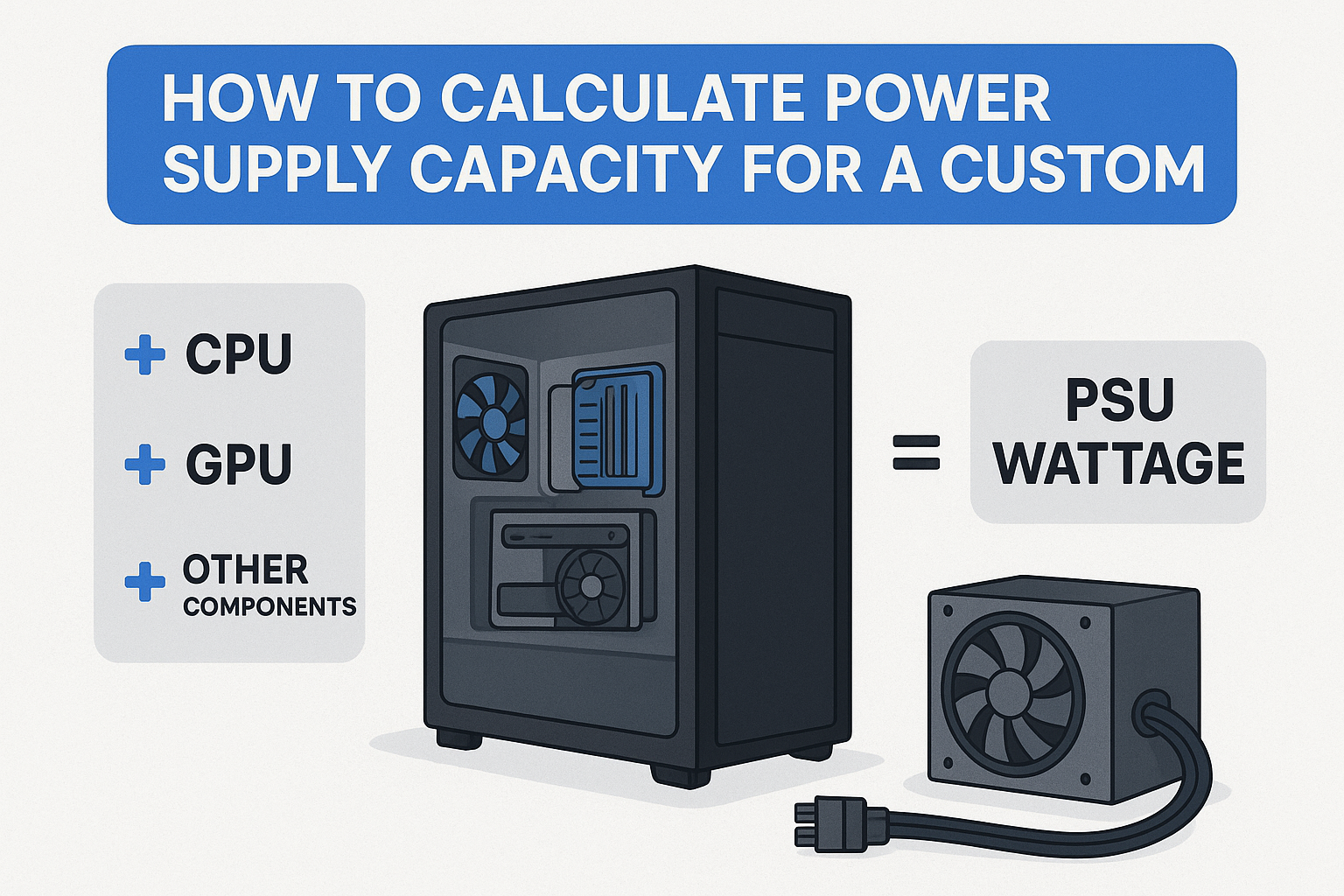
Therefore, after calculating your current needs (the sum of CPU+GPU+other components), choose a PSU with sufficient reserve. It’s always better to add a little more power reserve than to test your power supply in situations where it is unable to provide it.
What role do peripherals and storage devices play in power usage?
Data storage devices and peripherals (keyboards, mice, printers, etc.) also consume energy, but their impact on the overall energy consumption is negligible. For instance, CPUs or GPUs consume more energy than a keyboard or SSD.
A single hard drive can use 6–9 W during operation, while an SSD consumes about 2–4 W. That is even less. Peripherals usually have a minimal impact, but with a large number of such devices, the overall load on the PSU and PC can increase.
In the case of office PCs or multimedia stations, where many devices are used, this should be taken into account when calculating the power supply PC capacity.
How can you use online PSU calculators effectively?
First, determine the components of your PC – the correct CPU and GPU models, the amount of RAM, storage devices, fans, cooling, lighting, etc. The total power consumption is calculated based on the maximum energy each component might need during peak loads.
How to calculate wattage? Put all the data you have into the Seasonic wattage calculator and go step by step, putting in additional components’ power needs.
If you plan to overclock or upgrade components in the future, enable the corresponding option in the calculator. It will add a power reserve according to this scenario and include this indicator in the final value.
The main figure is the peak theoretical consumption of the system. The Seasonic calculator adds about 15–20% extra power to your total needs. This helps your PC stay stable during heavy use and leaves room for future upgrades.
If you enter incomplete data about some components (e.g., fans or drives), the result may be inaccurate. The most accurate estimate is based on responsible and complete data about the system.
What are the risks of choosing a PSU with too low or too high wattage?
In case of insufficient power, the PC may shut down, restart, or fail to start at all. In the worst cases, power failure or component damage may occur.
When loaded beyond its capacity, the power supply unit heats up, its efficiency decreases, and its longevity is reduced.
The best approach is to find a balance. That means select a PSU so that its peak usage reaches approximately 50–70% of the stated power, with an additional 20–30% reserve for future upgrades and peak consumption.
How does the efficiency rating affect your wattage needs?
PSUs that are 80 PLUS® certified use only 80% of the electricity they draw from the outlet. The other 20% is lost as heat.
80 PLUS® Gold, Platinum, and Titanium power supplies use less energy at the same load, which reduces electricity costs, heat, and cooling loads. In addition, they provide more stable operation and a longer service life.
The key insight here – choose 80 PLUS® certified PSUs and get the most from your PC, whatever tasks it handles.
Conclusion
Choose a PSU that has the power rating you need to ensure your PC lasts longer and does all tasks quickly. Fortunately, there are online calculators available today that calculate watts for you. Just put the exact power requirements for each component of your PC, and the final result will help you choose an efficient power supply.